What the Artlist Image Editor Costs: Three Edits, 210 Credits (2026)
Last verified: 2026-11-08
We added a mint sprig, recolored a mug and cut out the background of one teapot picture for 210 credits on our Max Pro account, and each edit landed as a new layer. Open Image Editor in the left menu of the AI tools in how Artlist works.
What does each tool cost?
Hold the pointer over a tool's action button to see its price. These are for our 1280 x 720 upload.
| Tool | Credits |
|---|---|
| Prompt | 90 |
| Spot Edit | 90 |
| BG Remover | 30 |
| Refine | 170 |
| Upscale, X2 | 270 |
| Expand | Not shown on hover |
How do you start an edit?
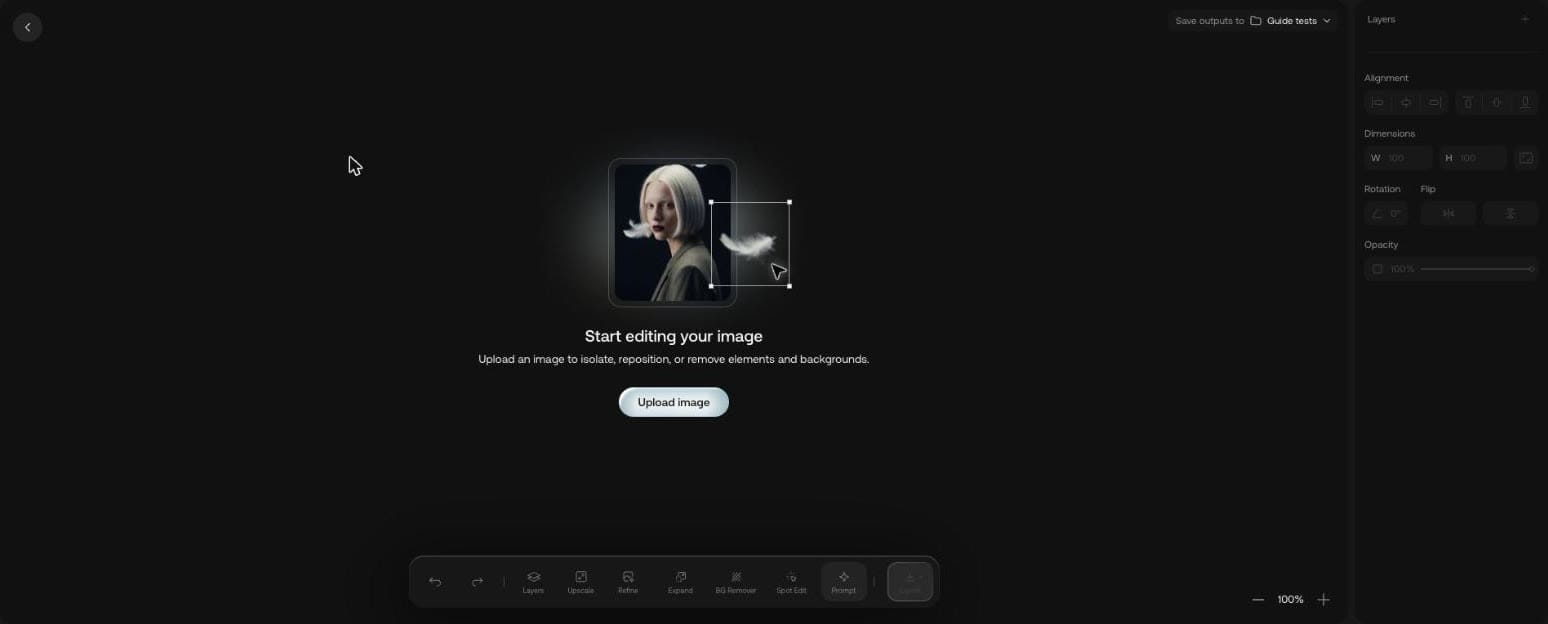
New Edit opens an empty canvas with Upload image. The top right shows where outputs are saved. The side panel holds layers, alignment, dimensions, rotation, flip and opacity.
How do you change the whole picture with a prompt?
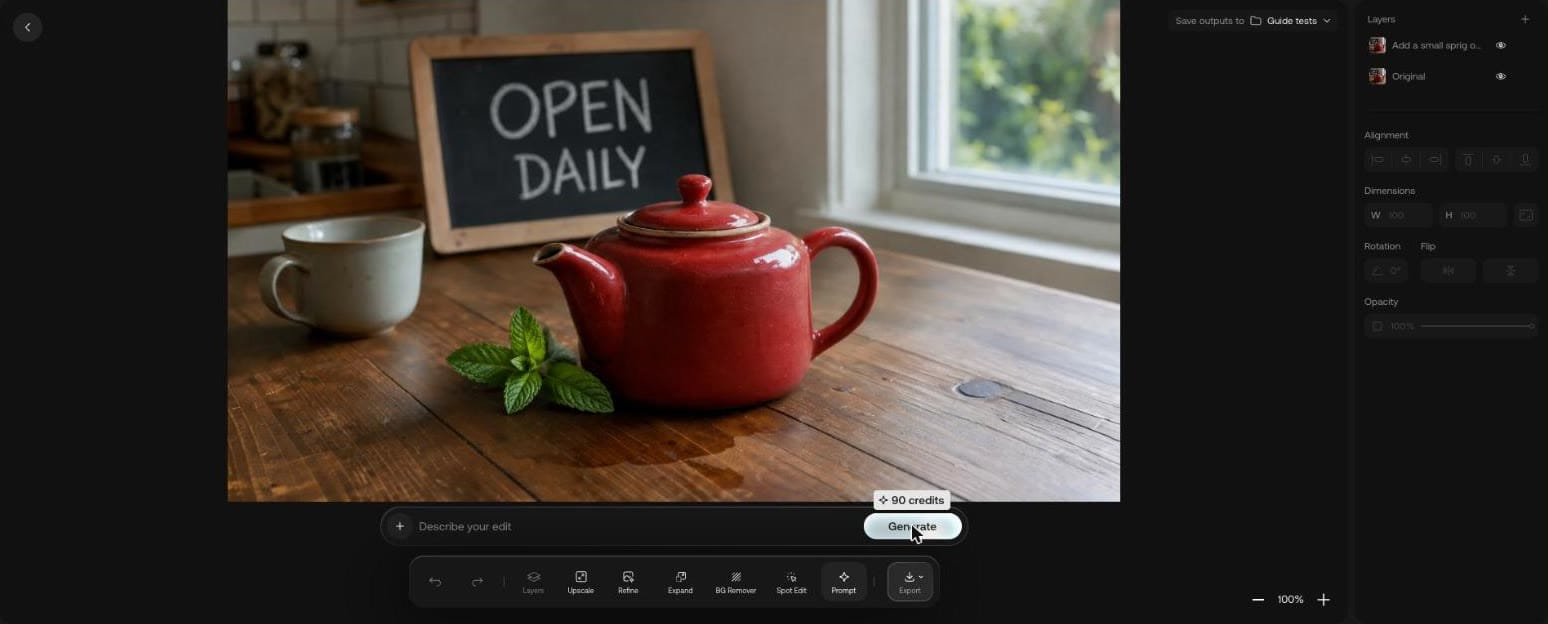
Choose Prompt, type, press Generate. Our 90-credit prompt:
Add a small sprig of green mint on the table beside the teapot
The sprig arrived in shadow on the table, and the sign, mug and window stayed where they were. It also became its own layer above Original, named after the prompt.
How does Spot Edit work?
Choose Spot Edit and click the thing you want changed. A pin appears with a small prompt box.
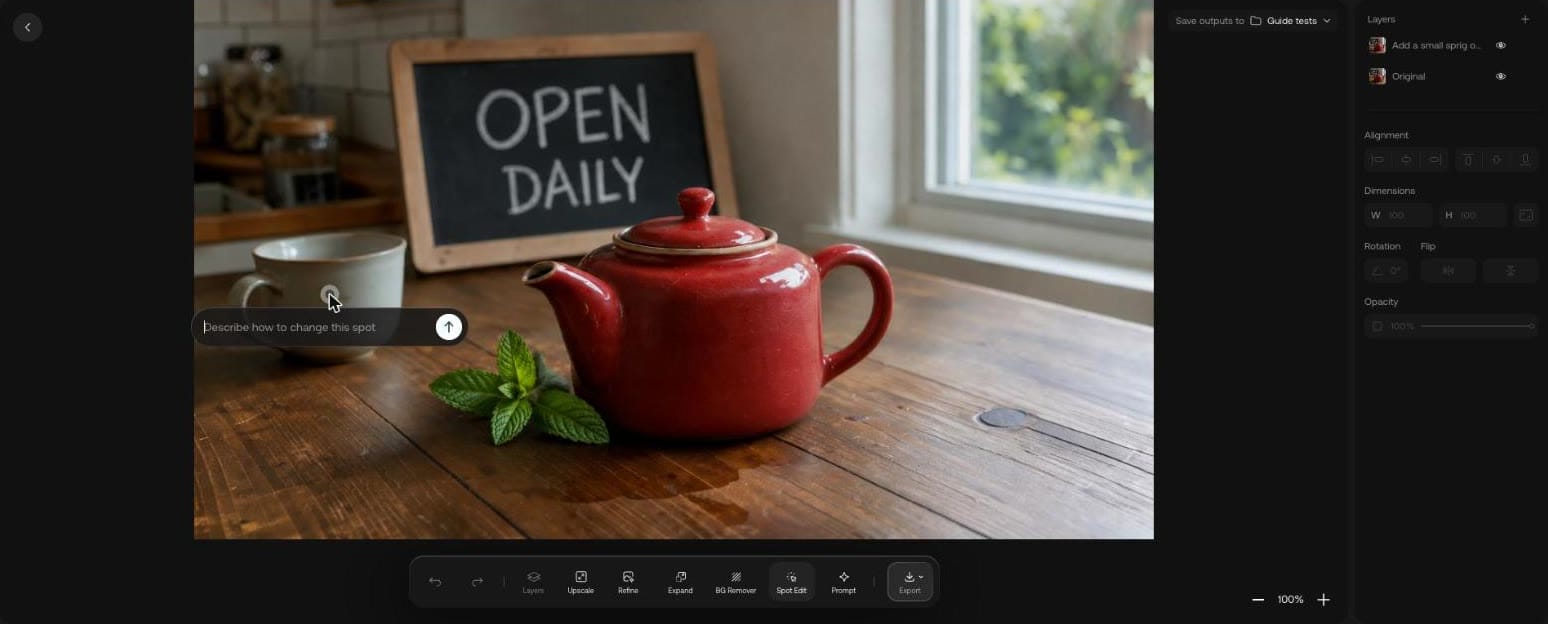
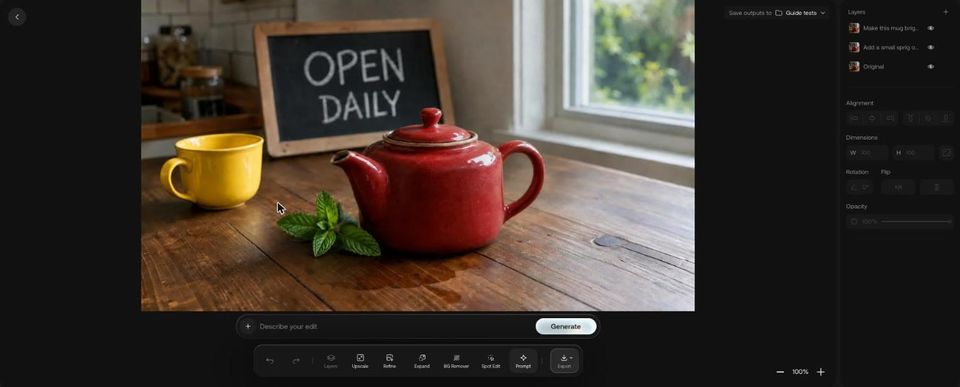
We pinned the mug and typed "Make this mug bright yellow". You can compare the result at the top of this page: the mug is yellow, the teapot, sprig and sign look unchanged, and the mug's rim and body took on a new shape and glaze. For a similar edit without the editor, the Artlist AI image generator accepts a finished image as a reference.
How do you remove a background on Artlist?
BG Remover was the cheapest tool here at 30 credits. It kept the mug, sprig and teapot and removed the table, sign and window.
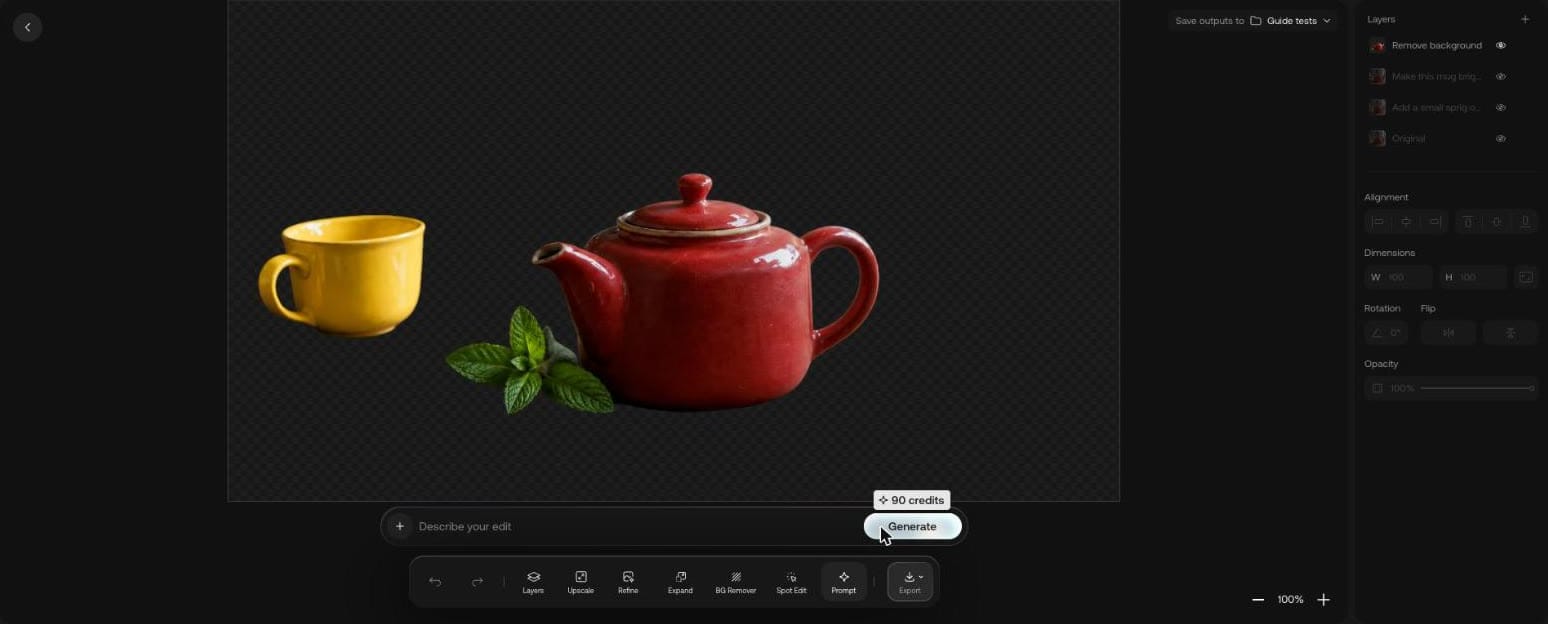
The older layers stayed listed, greyed out, under the new one.
Can you go back to an earlier layer?
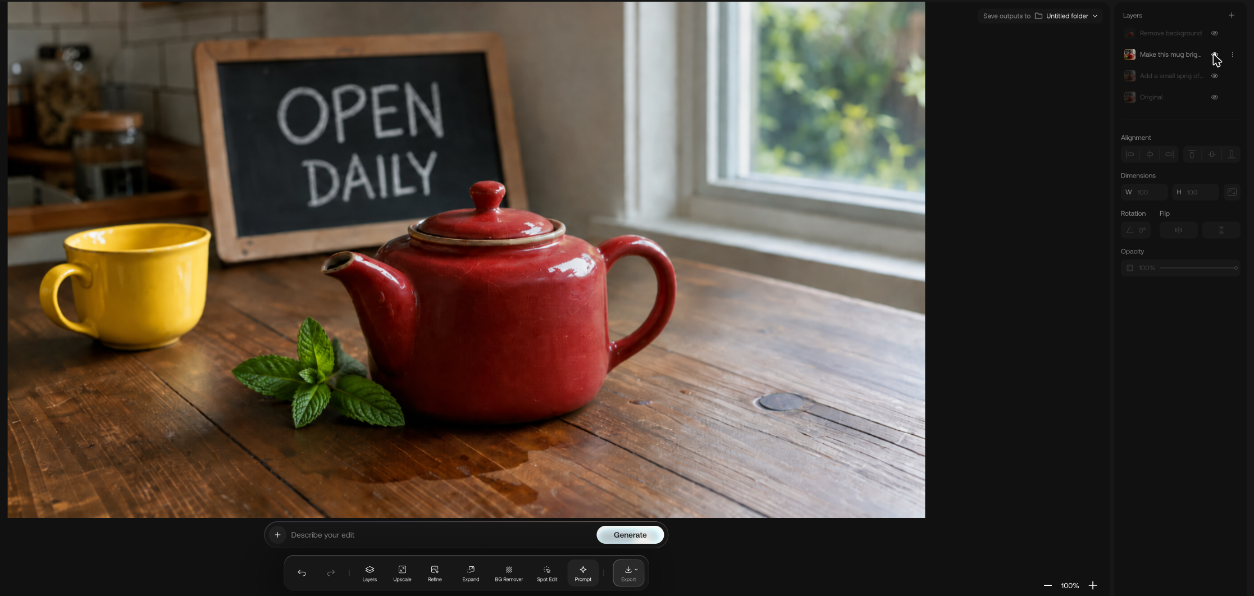
Yes. Each layer has an eye icon. Hiding the background-removed layer and showing the yellow-mug layer beneath it brought back the full kitchen scene with the sign, window and table. Switching the eyes back returned the cut-out.
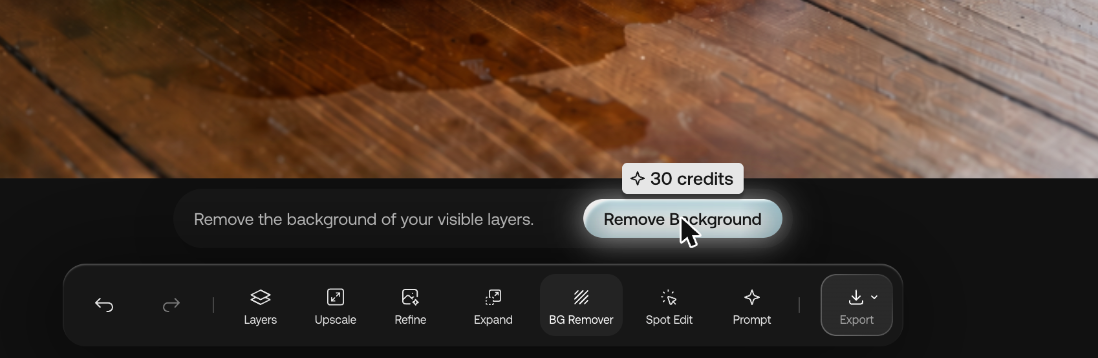
With BG Remover selected, the action bar reads "Remove the background of your visible layers." and Remove Background shows 30 credits on hover. So hide any layer you don't want cut out first.
Can you extend an image with Expand?
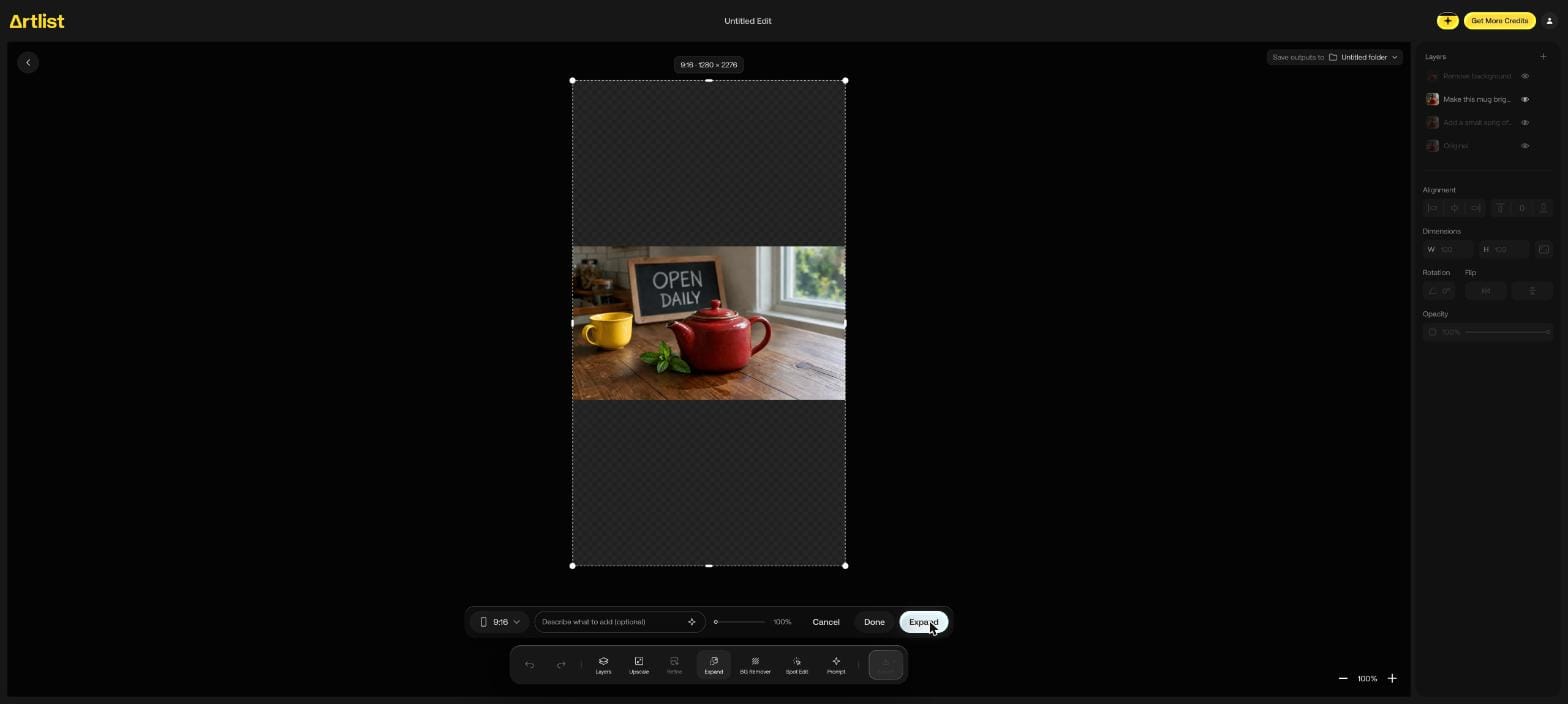
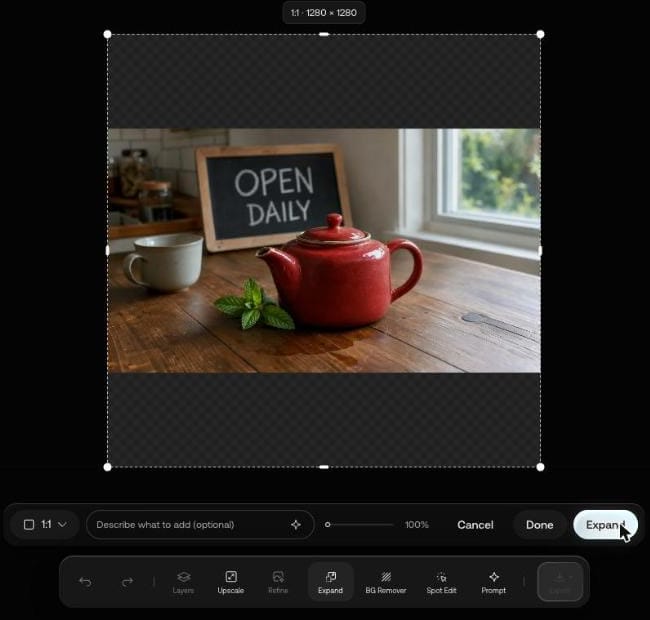
Expand takes a ratio and an optional description of what to add. Choosing 1:1 turned our picture into a 1280 x 1280 frame with empty bands above and below. No price appears before you press it.
The ratio list holds Original, 16:9, 9:16, 1:1, 3:4, 4:3, 3:2, 21:9, 2:3, 4:5 and Custom. At 9:16 the frame grew to 1280 x 2276 with the photo across the middle.
What are the Export options?
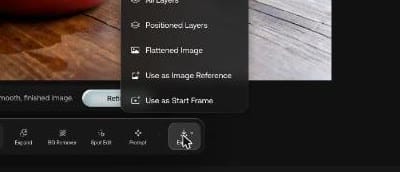
Five: All Layers, Positioned Layers, Flattened Image, Use as Image Reference and Use as Start Frame.
Upscale here offers X2 and X4. Video upscaling and other finishing tools are on our page about Artlist upscaling, lip sync and avatars.
An Artlist promo code gives 2 free months on annual plans. If you license music elsewhere, use the Epidemic Sound coupon code.