
Last verified: 2026-11-07
Artlist began as a place to license music for video. Today it's two products behind one login: a stock catalog of music, sound effects, footage, templates and LUTs made for editors, and a set of AI tools that generate video, images, voices, songs and 3D models from one credit balance.
If you've already decided to buy, our Artlist discount code page gives 2 free months on annual plans.
- Start here: plans, credits, rights
- Stock catalog: music, sound, footage, grading
- AI: images, video, voice, music, 3D
- Tools: Flows, Studio, plugins, MCP
- Decisions: is it worth it for you?
Start here: what you are actually buying
Three questions decide your Artlist bill, and they're best answered in this order. Do you need stock, AI or both? How much AI will you really use? And will your video be published for yourself or for someone else?
Where everything lives
Two addresses share one account. The stock catalog is at artlist.io, and the AI tools open at toolkit.artlist.io. Stock Catalog in the AI tools' left menu takes you across in a new tab. Your plan decides what works on each side: a Music & SFX subscriber can download footage only with a watermark, and a plan with no credits can't generate.
Do you need stock, AI or both?
The pricing page splits along the same line as the product. It has an AI Suite tab and a Stock Catalog tab, and only one family of plan sits on both sides of that line: Max.
| If your video needs | You need | Starting price, billed yearly |
|---|---|---|
| Licensed music and sound on your own channels | Music & SFX Social | $9.99 a month |
| Licensed music for clients or ads | Music Pro or Music & SFX Pro | $16.58 or $24.92 |
| AI generation, no stock | AI Starter, AI Core or AI Creator | $11.99, $23.99 or $41.67 |
| Stock footage, templates and LUTs as well | Max | $39.99 to $76.99 by credits |
| Any stock inside a company over 50 people, or an agency | Max Business | From $399 |
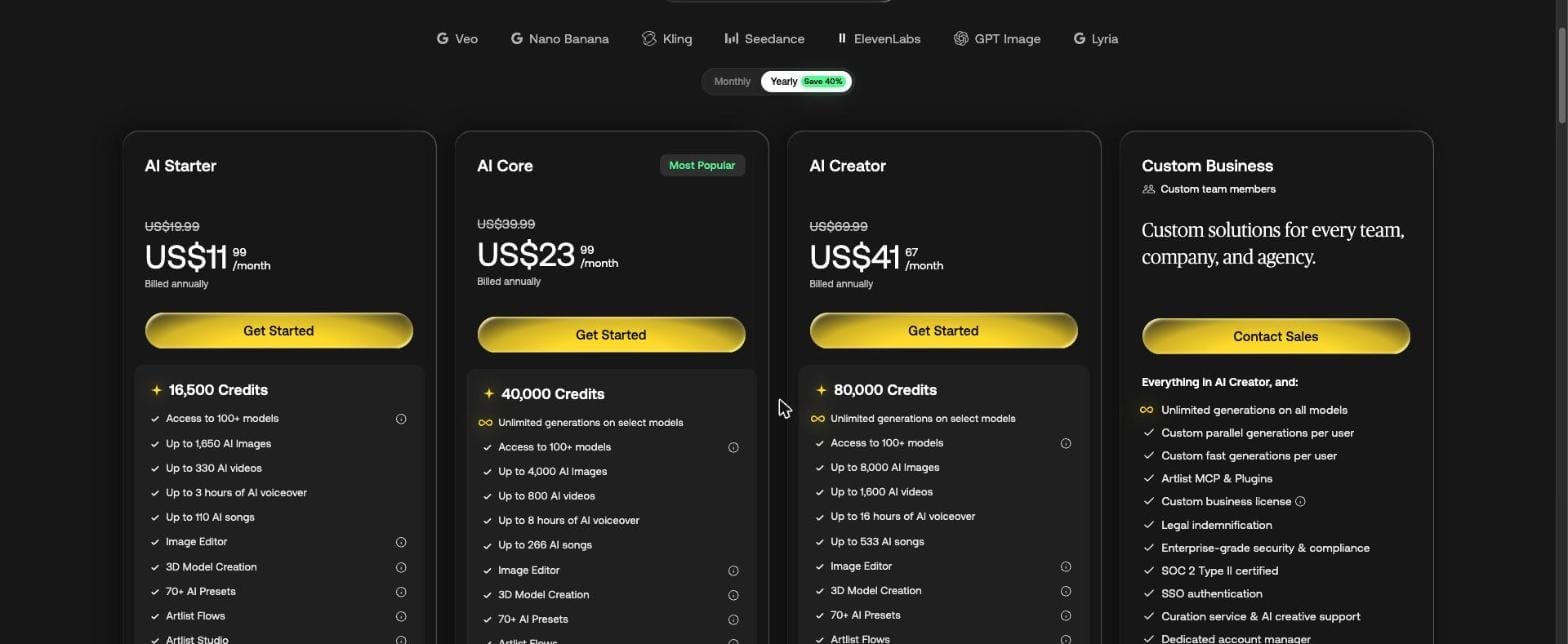
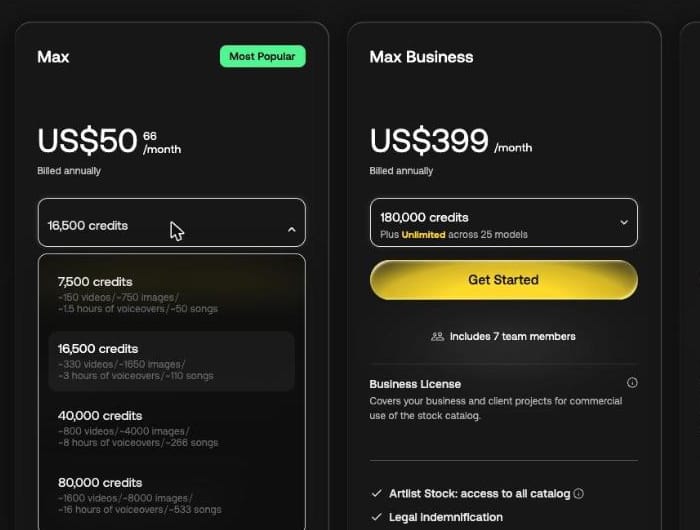
The easy mistake is treating Max as one price. It's sold by credit tier, so the same plan costs $39.99 with 7,500 credits and $76.99 with 80,000. The low tier is the cheapest way to get footage, but it's a thin allowance if you came for AI.
A useful sum: Music & SFX Pro plus AI Starter costs $36.91 a month and gives you music and 16,500 credits. Max at 16,500 credits costs $50.66. So the footage, templates, LUTs and plugins together add $13.75 a month. If you'd use any of them more than now and then, Max wins. All of it is laid out in our page on Artlist pricing.
The pricing page also has things you won't see on a card. Its FAQ still names AI Professional, AI Pro Plus, Sound Effects Pro and Footage & Templates, and Music & SFX opens a chooser where Pro and Social and music-only all appear. Team plans run from 2 to 7 seats for companies under 50 people, with a Pro license.
Most of these plans are billed yearly. On the stock side only Music & SFX Social offers monthly billing. The AI Suite plans do show monthly prices, about 40% higher.
The yearly price wins from the eighth month. AI Starter is $143.88 for a year paid up front, and eight months at $19.99 come to $159.92, with the same break-even on Social, AI Core and AI Creator. If you might stop within seven months, pay monthly.
The gap between Max and two separate plans stays between $10 and $14 as you climb. At 40,000 credits Max costs $14.08 more than Music & SFX Pro plus AI Core, and at 80,000 it costs $10.40 more than Music & SFX Pro plus AI Creator.
How much AI will you really use?
A credit is the same unit everywhere in the AI tools, whether it buys an image or a song, so you have one balance rather than one per tool. Monthly credits reset and don't roll over, including on a yearly plan.
Here is what our test generations cost:
| What we made | Credits |
|---|---|
| 8 seconds of voiceover | 11 to 22 |
| One image | 30 to 90 |
| A song of 2 to 3 minutes | 300 |
| 5 seconds of video | 175 to 1,000 |
| A 3D model | 300 to 900 |
Those numbers don't line up easily with the pricing page. AI Starter says "up to 330 AI videos" for 16,500 credits, which is 50 credits a clip, the starting price of the cheapest video model we saw. Our cheapest clip at 480p was 175, and that buys about 94.
The better way to budget is to price one finished video. Say you're making a 60-second spot from 12 five-second clips:
| Ingredient | Our price | Credits |
|---|---|---|
| 5 start-frame images | 30 each | 150 |
| 12 clips on MiniMax H3 Max Turbo | 175 each | 2,100 |
| 60 seconds of voiceover, MiniMax 02 HD | About 11 per 8 seconds | 83 |
| One song on Lyria 3 Pro | 300 | 300 |
| Total | About 2,630 |
That's about six finished videos on 16,500 credits, before retakes. Run the same 12 clips on Seedance 2.5 at 1,000 each and one video takes 12,533 credits, most of the month. The model you pick matters far more than the plan name, so read our breakdown of Artlist AI credits before you settle on a tier.
In money, 1,000 credits on AI Starter billed yearly cost $0.73, and $0.52 on AI Creator. The MiniMax version of that spot is about $1.91 of an AI Starter month, and the Seedance version about $9.11. Per second, the prices we paid or were quoted ran from 35 credits on MiniMax H3 Max Turbo at 480p to 1,000 on Seedance 2.5 at 1080p, so a full minute at the top end is 60,000 credits, more than AI Core holds.
Two more budgets show where the tiers split. A weekly 10-minute explainer with narration, 20 images and a song came to 6,900 to 15,000 credits for four episodes, inside AI Starter. Thirty 5-second clips a month on Seedance 2.5 came to about 30,000, which needs AI Core.
A few rules follow from the balance being monthly:
- You pay for trying. Credits come off when you generate, even if you never download the result, and Artlist doesn't refund for a take you don't like. Its music FAQ says generations that fail with an error don't use credits.
- Upgrades apply at once. Your new limit starts straight away, minus what you've spent, with a prorated charge. Downgrades wait for renewal. Spend 15,000 of AI Starter's 16,500 and move to AI Core, and you have 25,000 left for the rest of the cycle.
- Top-ups are for big plans only. From 80,000 credits on a yearly plan you can buy a one-off bundle. It expires after 30 days and is lost if you cancel.
- Stock plans can add credits. Music & SFX plans can buy AI credits as an add-on from your account overview, if you'd rather not move to Max.
Then there's Unlimited. On selected models and settings, generating takes no credits at all. It starts at the 40,000 credit level:
| Level | Models on Unlimited | Fast generations a month |
|---|---|---|
| AI Starter, Max at 7,500 or 16,500 | 0 | n/a |
| AI Core, Max at 40,000 | 9 | 700 |
| AI Creator, Max at 80,000 | 19 | 900 |
| Max Business | 25 | 900 and up |
Fast generations are the catch worth knowing. After they run out, Unlimited continues at standard speed, and you can switch it off to spend credits for speed. Artlist also says Unlimited is "for human use only" and doesn't apply through MCP.
Who is your video for?
This one decides the license: it depends on the plan, not the asset.
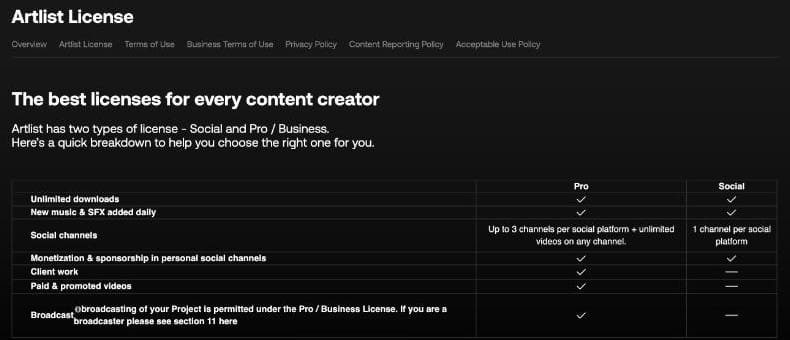
The Social license covers one channel per platform, with monetization and sponsorship on your personal channels. It doesn't cover client work, paid ads or broadcast. The Pro license covers up to three channels per platform, unlimited videos on any channel, client work, ads and broadcast. Max comes with Pro.
Three rules tend to surprise people, and the full explanation is on our Artlist license page:
- Publishing date is what counts. Anything you publish during your subscription stays covered forever, and you can keep earning from it. Anything you publish after it ends isn't covered, even using a track you downloaded while paying.
- Stock can't stand alone. Stock music can only appear inside a project, so no Spotify, no music channels, no lyric videos, no static image with a song behind it. Podcasts are the named exception.
- Company size can force your plan. If you work for an agency, a broadcaster or a company with more than 50 employees, the license requires Max Business or Enterprise for stock. AI-only plans are exempt from that rule.
AI output follows different rules from stock. You don't get a license to it so much as whatever rights Artlist holds: its terms assign them to you and don't restrict commercial use, including after you leave. What you download from the catalog is licensed for projects. Whether a song you generate can be released on its own, on Spotify for example, isn't settled in Artlist's documents; our license page explains how we read it.
| Downloaded from the catalog | Generated by you | |
|---|---|---|
| Who holds rights | Artlist or its artists; you hold a license | Artlist assigns you whatever rights it has |
| New projects after you cancel | No | Yes |
| Published work after you cancel | Stays covered | Stays yours |
| Standing alone, such as an album | No | No such ban in the License, Terms of Use or Acceptable Use Policy |
| Claims protection | Clearlist, for music | Not needed for AI voice, images or video |
One edge is easy to miss. AI content from Artlist's Explore page, and anything you make by running catalog assets through AI, counts as an Asset, so catalog rules apply. Artlist's Acceptable Use Policy also bars removing AI labels and requires you to follow any disclosure rules that apply where you publish.
Clients are covered under Pro. You download and make the project, you hand it over, and they can publish it. They can't download assets on your license.
| Project | Lowest plan |
|---|---|
| Monetized videos on your own channel | Social |
| A client's wedding film or a paid ad | Pro |
| A TV commercial | Pro |
| A billboard, DVD or audiobook | Max Business |
| An app or a game | Enterprise |
One exception catches freelancers: Artlist's help article says projects with stock made on behalf of a company with more than 50 employees need Max Business or Enterprise.
Protect your uploads before you publish
Artlist registers its music with YouTube's Content ID, which means a licensed track can still get flagged. The fix is the Clearlist: you connect your channel, and YouTube then knows the music is licensed to you.
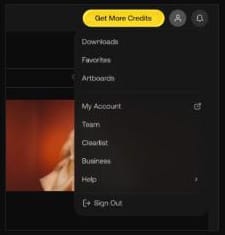
Do this before the first upload. Add your channel later and a claim from Artlist Ltd clears, but money lost in the meantime isn't paid back. On Pro, a main channel and a Shorts channel take two of your three YouTube slots, and a client's videos can be cleared one by one, since single YouTube videos are unlimited. Stock music is what it protects. Footage, sound effects, AI voiceover, AI images and AI video don't need it.
If a claim has already appeared, look at who made it. "Artlist Ltd" nearly always means a channel missing from the list. Anyone else means sending Artlist the track link, a public video link and a screenshot of the claim. Our page on Artlist YouTube copyright claims gives the steps per claimant and for Facebook, Instagram and TikTok.
Try before you pay, and know how to leave
You can look around for free. The Artlist free trial is an account with no time limit and no card, with the full catalog to browse, unlimited watermarked previews of music and footage, and a handful of AI tests. You can't publish from it, and trial generations can't be downloaded. Use it to cut a watermarked track into a rough edit and to build a shortlist.
A good free-account session has three parts. Run your next project's brief through music search and download two watermarked options. Create an Artboard with your project description, since it stays intact when you subscribe. Then spend your AI tests on one image and one voice line, because there are too few to compare models.
Treat the free account as your testing window, because the paid one closes fast. Artlist refunds a payment within 14 days only if you haven't downloaded or generated anything since. One download and it's gone.
Leaving is simple: My Account, Billing, the more icon, Subscription details, Cancel renewal. The plan runs to the end of the period. Before that day, download your AI generations and song certificates and add every channel to the Clearlist, since none of those can be done afterwards. Our guide to how to cancel your Artlist subscription lists what stays and what goes.
Your first hour on a paid plan
Set things up in this order:
- Connect your channels. Open Clearlist and add each channel you'll publish on, before uploading anything.
- Create an Artboard for your current project. Describe it, and you'll get suggestions as well as somewhere to save picks.
- Download one track as WAV and find it under Downloads, with its certificate beside it. Now you know where proof of license lives.
- Open the AI tools and find the Unlimited toggle. If your plan has it, see which models carry the infinity mark.
- Make one image on a cheap model and press Add to Prompt. That one habit runs through nearly every AI tool below.
- Check your billing date. It tells you when the monthly credits reset and when a yearly plan renews.
Stock catalog: finding what already exists
Once you're in, start with the stock catalog even if you came for AI. Real music and real footage are often faster than generating them, and the catalog's search has more to it than the plain search box suggests.
The catalog opens in its own tab, with a left menu for Music, Sound Effects, Footage, Video Templates, LUTs, Tools and Spotlight, plus your Favorites, Downloads and Artboards.
Each catalog follows the same pattern: a search box, category menus, a Filters panel, a sort defaulting to Staff Picks, and a row or tile with buttons for download, favorite, similar and more.
Finding the track
Music is where most editing projects start, and there are three ways in.
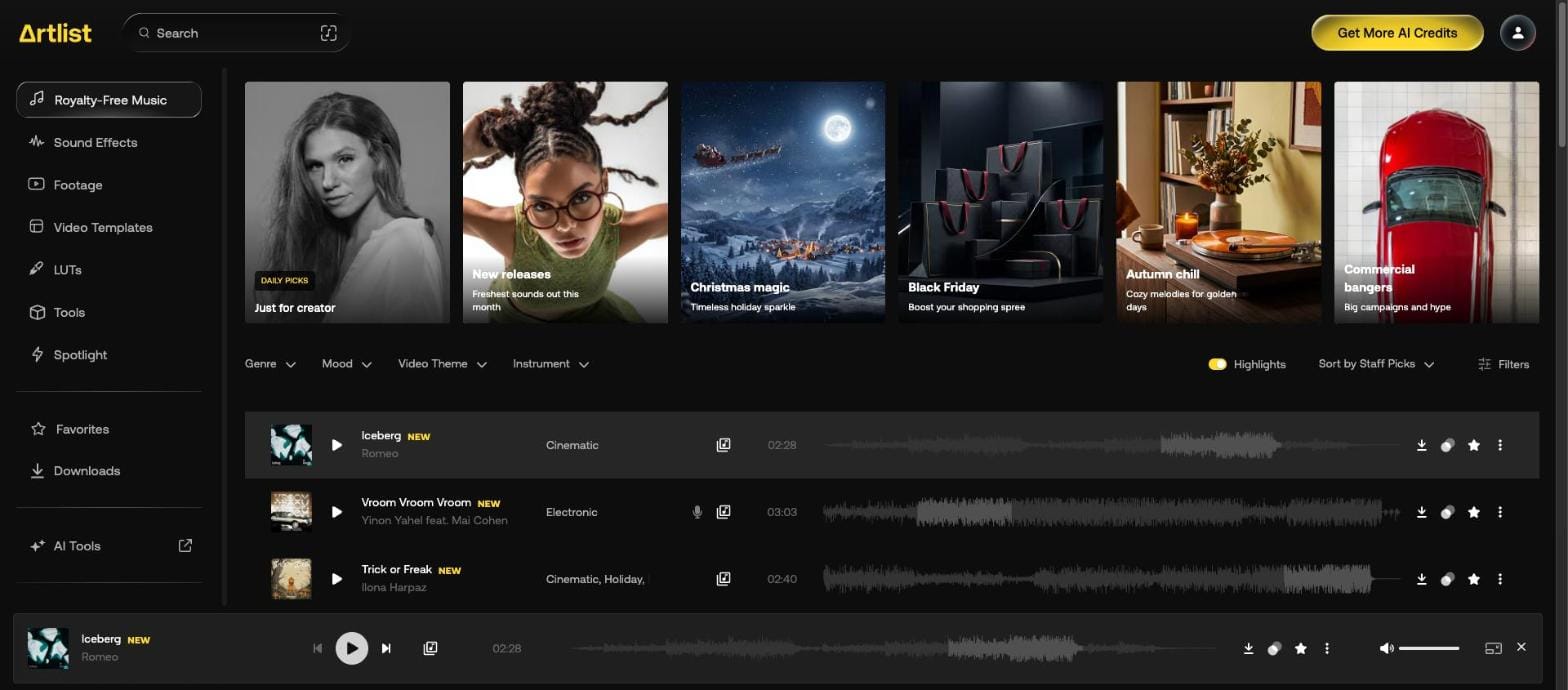
Describe it. The box takes ordinary phrases. We typed "warm acoustic road trip with handclaps", and the first rows came back tagged Folk and Acoustic, with four matching collections suggested. It also searches lyrics, so a half-remembered line can find a song.
Name a song you like. Song Match sits at the right of the search box and takes a song, an artist, or a YouTube or Spotify link to a single track. Artlist's Help Center says it suggests 20 similar songs from the catalog. This is the feature to use when a client sends a reference and asks for "something like this".

Narrow by filter. Four menus of tags, for Genre, Mood, Video Theme and Instrument, plus a Filters panel for vocals, duration, BPM, stems and tracks you've already downloaded. Tags stack as chips above the list. Hover over one and press minus to exclude it instead. "No Documentary" is often more useful than picking a theme when the results keep sounding the same.

Once you have a candidate, two controls save time. Similar songs on its row gives you alternatives if a client rejects your first pick, and Highlights, on by default, previews results by their most exciting part so you don't sit through intros. Everything here is made by people: Artlist says no AI music is in the catalog.
The homepage also has a Trending songs widget. Choose YouTube, Spotify or TikTok, and for the first two a country, and you get the top 20 hits. Click one and similar catalog tracks appear beside it, so you can get close to a popular sound from inside the licensed catalog. Artlist also has a custom ChatGPT that recommends assets from a description, if you'd rather talk through a brief. The full walkthrough is on our page about how to find music on Artlist.
Making the track fit
A track rarely fits an edit as it comes, and stock licensing usually leaves you stuck with what you got. Artlist gives you two ways around that.
Song versions are other cuts of the same song, such as an instrumental or one without backing vocals. A down arrow beside the title shows them. Check here first when a vocal fights with your narration.
Stems split a song into its parts. Press the icon left of the track's length, and a dialog lists them: drums, bass, keys, strings and so on, each with its own waveform and solo and mute buttons. Download one or all of them as WAV or MP3. You can then drop the drums under dialogue, or remove the lead when a voiceover comes in.
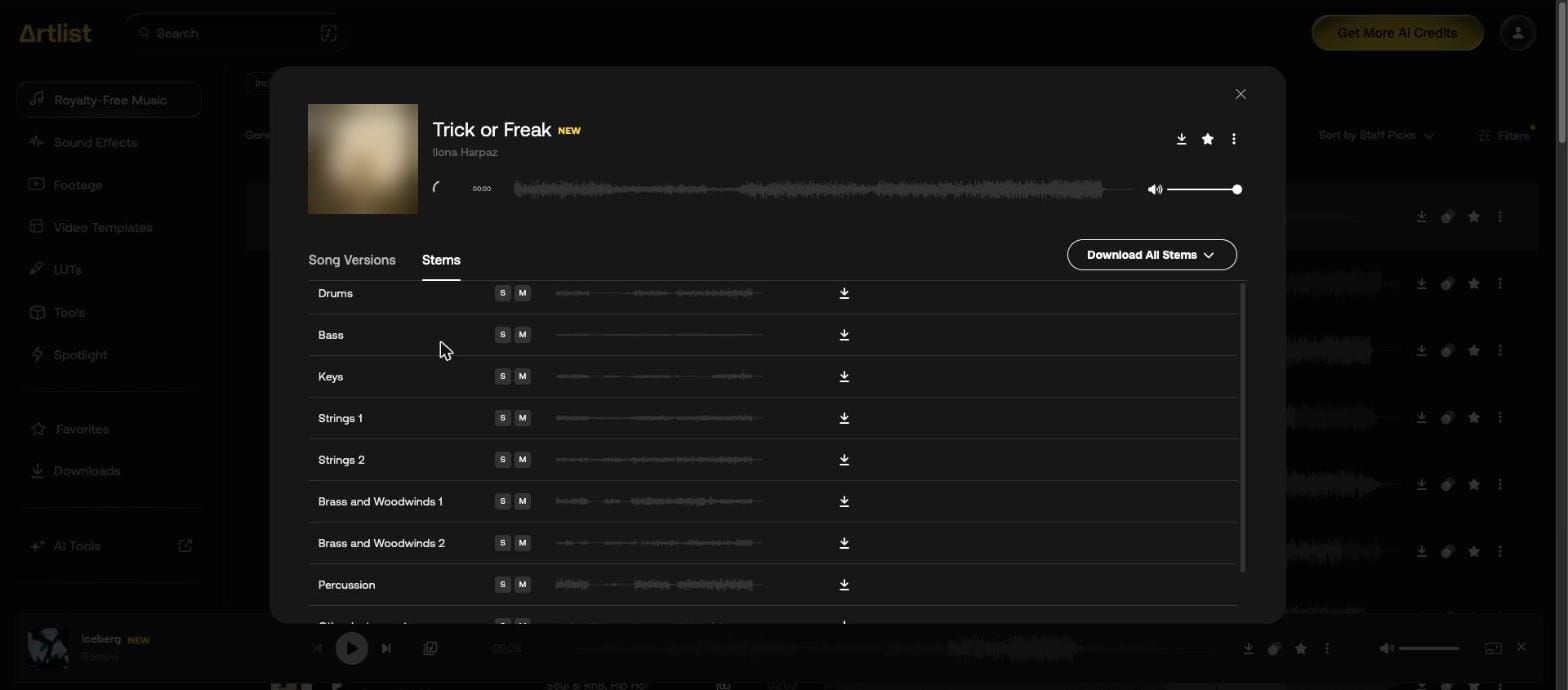
Not every track has them, so turn on Includes Stems in the Filters panel before you fall in love with a song. You can edit stems in any way that fits your video, as long as you don't claim the new composition as yours. Our Artlist stems and song versions page shows both dialogs.
Adding sound
Sound effects live one menu down and work a little differently. There's no Filters panel, Highlights or Song Match. You type what you hear, or use six category menus: Ambience, Foley, Genre, Musical, Realistic and Transitions.
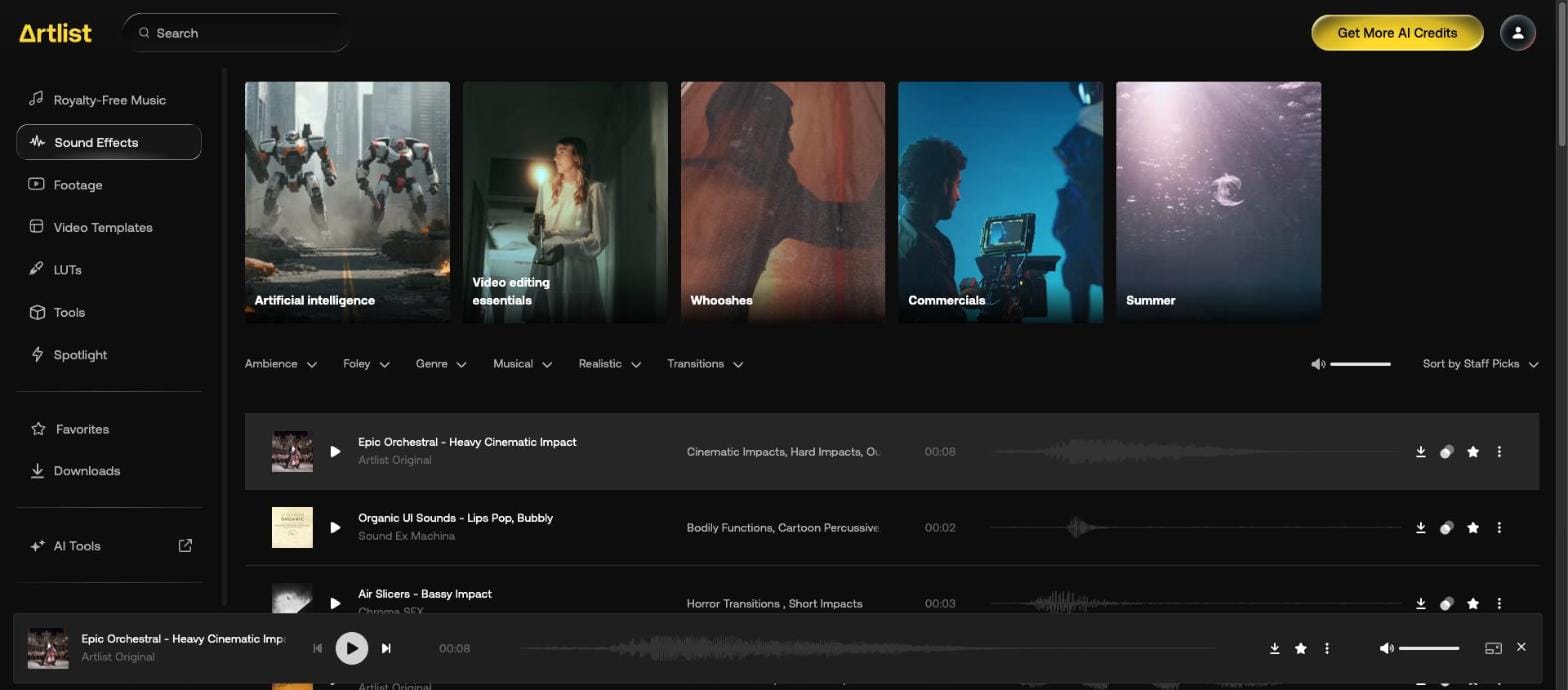
"footsteps on gravel" gave us rows from 2 to 10 seconds. Similar SFX opens matches right under the effect, which is how you find a variation for the second footstep so a repeated sound doesn't give itself away. Files download as AAC or WAV on the effect we checked, and the Artlist sound effects page has the category details. You can get up to 100 a day.
Sound also has the catalog's one sharp difference from music: a volume slider beside the sort control, which helps when you're auditioning a run of quiet room tones against loud impacts. The tiles above the list are ready-made collections, such as Whooshes and Video editing essentials, and they're a quick start if you need a basic set for a first edit.
Finding the shots
Footage needs Max or Footage & Templates, and it has the catalog's most useful filter. Alongside Video Theme, Shot Type and People, there's a toggle called Include AI Content.

Some stock clips here are AI generated and carry a "Made With AI" label. If a client or broadcaster wants only filmed footage, turn the toggle off. In our test, the labeled clip left the grid.
Open a clip and Clip details tells you whether it'll cut with your own material: resolution, frame rate, camera and available formats.
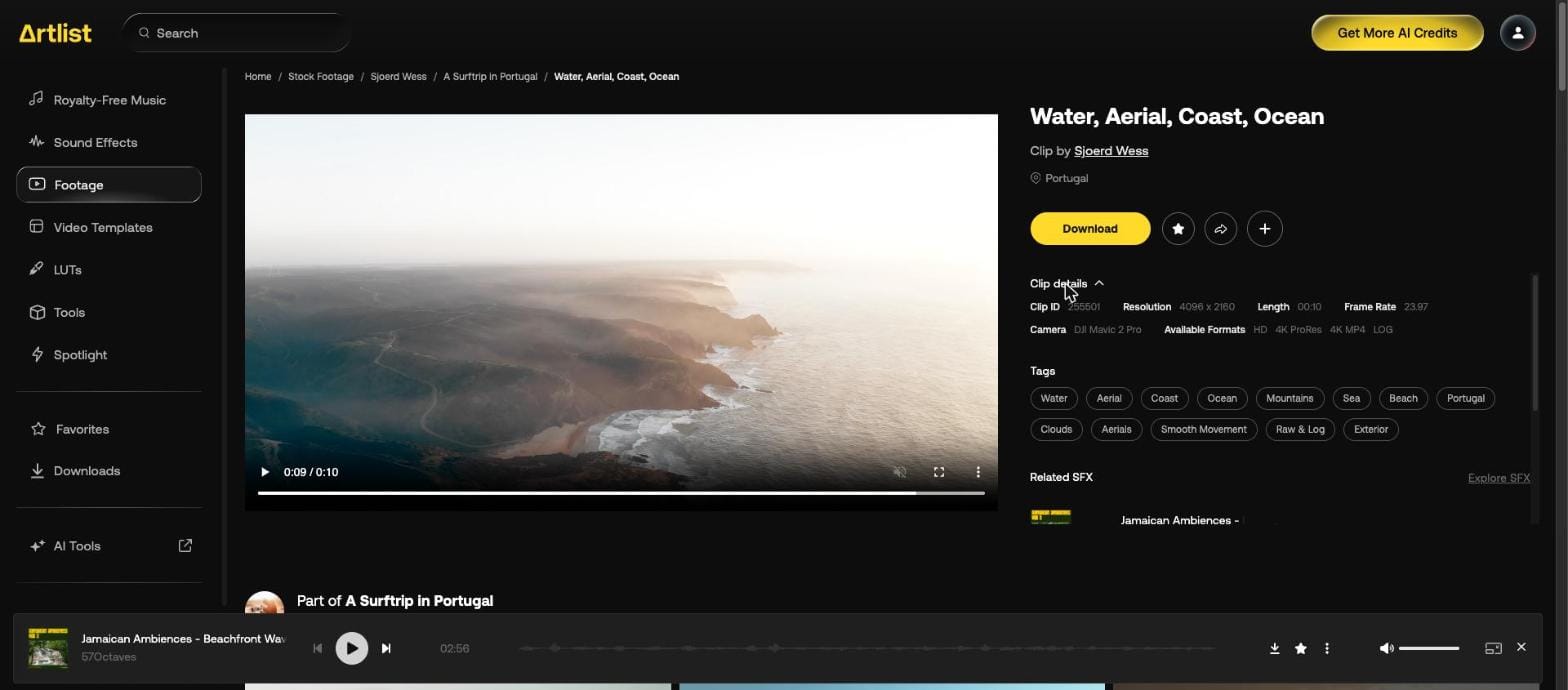
Our drone clip listed 4096 x 2160, 23.97 fps, a DJI Mavic 2 Pro and four download formats.
| Filter | What it's for |
|---|---|
| Shot Type | Raw & Log, 4K+, Golden hour and 15 others |
| People | No people, One person, Family and 16 others |
| Duration | A slider up to 1:00+ with presets |
| Orientation | Vertical Only, for social cuts |
| Frame Rate | 23.97, 24, up to 50+ fps |
Plans differ here. Max gets HD to 8K, ProRes and DNxHR, with RAW and LOG as an add-on at checkout. Watermarked clips are available on music-only plans, which lets you test a shot in the edit first.
Each clip page also offers related sound effects and other clips from the same shoot, which helps when you need a second angle. There's more on our Artlist stock footage page.
Dressing the edit
Templates cover the graphic work: titles, lower thirds, logos, transitions and so on. Filter by your editor first, because the catalog spans Final Cut Pro, After Effects, Premiere Pro and DaVinci Resolve, and a template won't necessarily work in all of them.
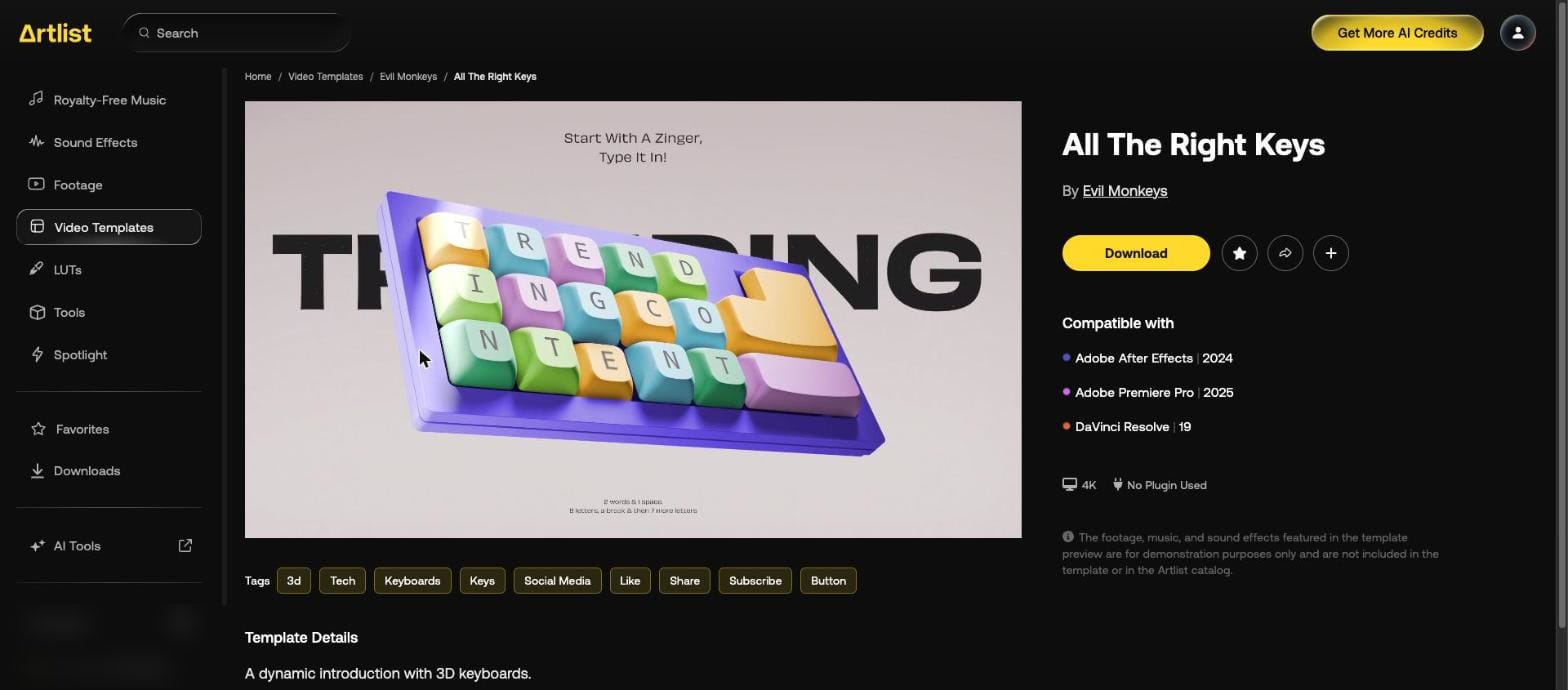
Then read Compatible with on the template's page. It gives the version per editor, such as Premiere Pro 2025 or DaVinci Resolve 19, and whether a plugin is needed.
The Technical menu narrows by 2K, 4K, HD, Vertical, Square and Wide. Categories runs through Typography & Titles, Lower Thirds, Logos, Intros, Slideshows, Infographics, Presentations, Elements, Transitions, Tools, Music Visualizer, Mock-Ups, Macros and Presets. A vertical filter is the one to remember if you're cutting for social.
One thing to expect: on the template we opened, the footage and music in the preview weren't included. You fill it with your own or with what you just found. Pressing Download turns into one choice per editor, as our page on Artlist video templates shows.
Grading it all to match
With clips from several shoots, the last catalog stop is grading. Artlist LUTs have a nice way of testing: pick one of 10 sample clips close to your footage, and every LUT in the grid switches to that clip. Hover over one for a split view against the source.
This solves the usual problem with LUT shopping, which is judging a look on someone else's footage. Choose a sample with people if you shot people, or the car or interior if that's nearer your job.
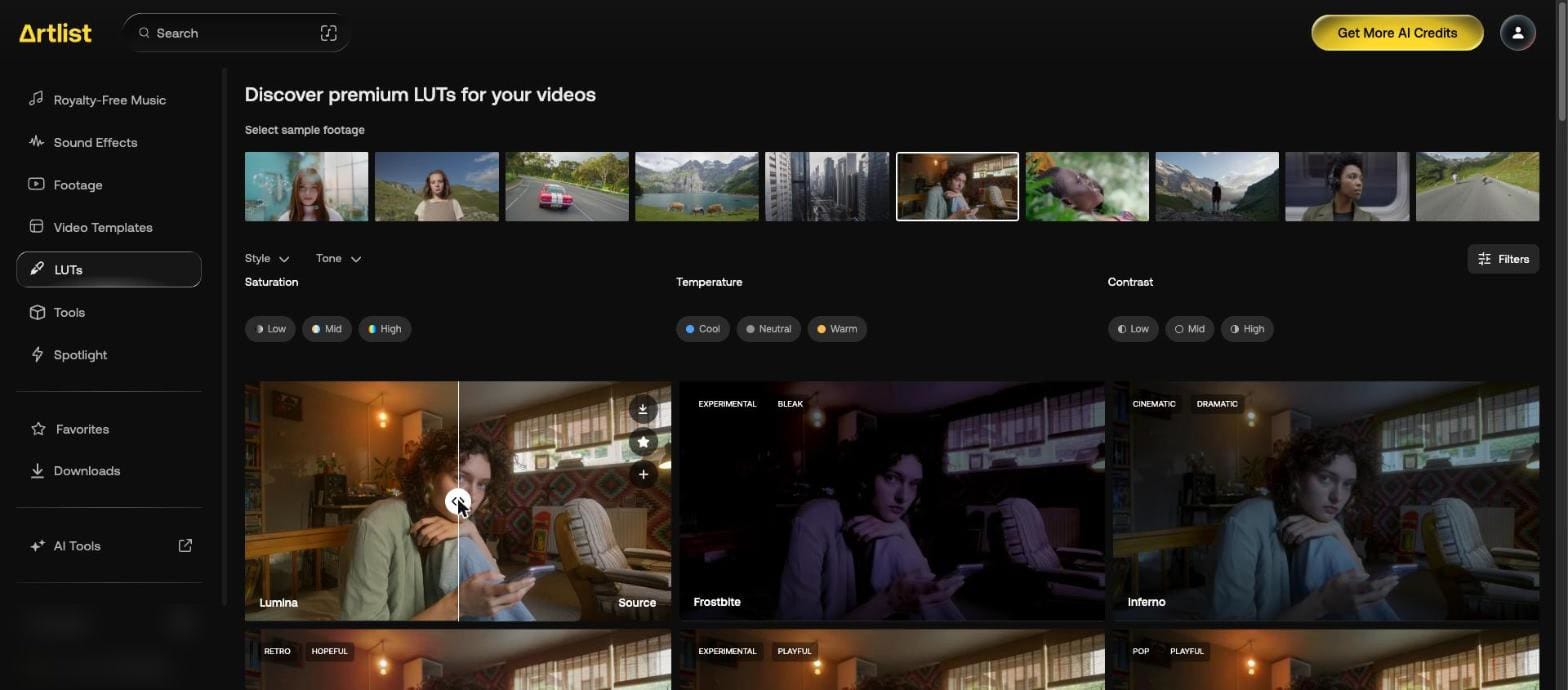
Filter by Style, Tone, Saturation, Temperature and Contrast, then press the arrow. We got Lumina.cube, a 33-point 3D LUT of 970 KB. All Artlist LUTs are built in Rec. 709. In your editor, apply it to an adjustment layer so the original stays untouched: in Lumetri Color for Premiere Pro, as a 3D LUT on a node in DaVinci Resolve, or through Custom LUT in Final Cut Pro. Our Artlist LUTs page has the steps.
You could reach for the plugins instead, since Cine Style and Tone Coloring are among them, but a LUT is a plain file that travels with your project into any of the editors above.
Keeping track of it all
A project soon collects tracks, clips and effects from several menus, and Artlist gives you three ways of holding on to them.
Favorites is the quick one: press a star and it's saved, with no limit. Artboards are named collections for a project, and they're worth using for one reason in particular. You can send a link to a client and they don't need an account to see it. Describe the project when you create one and Artlist's AI suggests assets from across the catalogs. There's no bulk download, so assets come off one at a time. Spotlight is Artlist's own curation, with music, sound effect and footage collections.
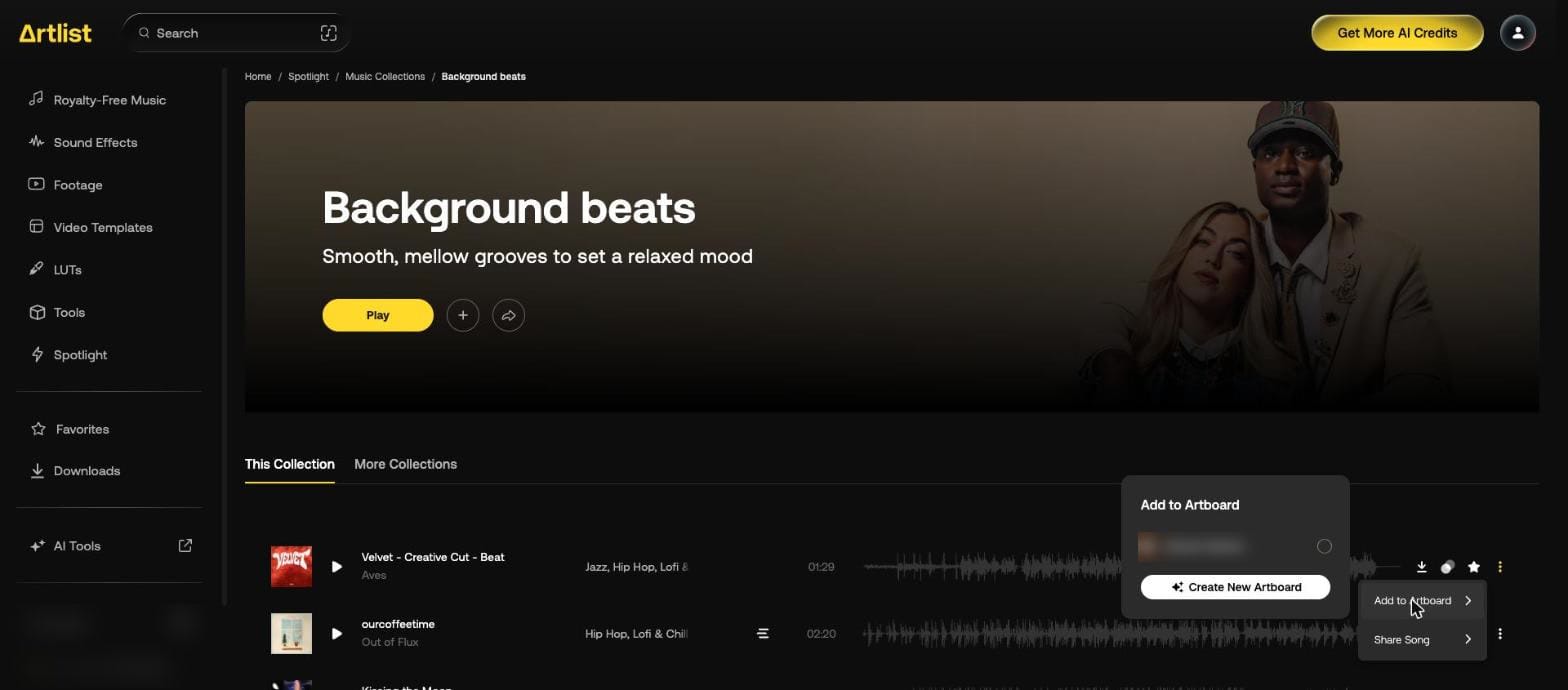
Downloads holds your history across computers, with re-download links, license certificates and cue sheets for songs. Save the certificates for anything you publish, because you'll want them if a platform asks and they're out of reach once your plan ends.
"Unlimited downloads" on the license page really means a daily ceiling that most people won't reach:
| Asset | Per day |
|---|---|
| Songs | 40 |
| Sound effects | 100 |
| Clips | 100 |
| Templates | 40 |
| LUTs | 40 |
The counter resets at midnight UTC, and re-downloads don't count. Our page on Artlist downloads and collections has the format for each asset type.
| Asset | What you choose on download |
|---|---|
| Music | MP3 or WAV |
| Stems | MP3 or WAV |
| Sound effects | AAC or WAV on the effect we checked |
| Footage | HD, 4K ProRes, 4K MP4 and LOG on the clip we opened |
| Templates | One button per editor |
| LUTs | Direct .cube download |
The WAV we downloaded was 24-bit, 44.1 kHz stereo, 42.5 MB for a 2:40 track. Go for MP3 while you're trying options, then WAV for the final.
Working from inside your editor
Once you know the catalog, you can stop leaving your timeline for it. The Artlist Hub is a desktop app, installed from Tools in the left menu, and it delivers three things.
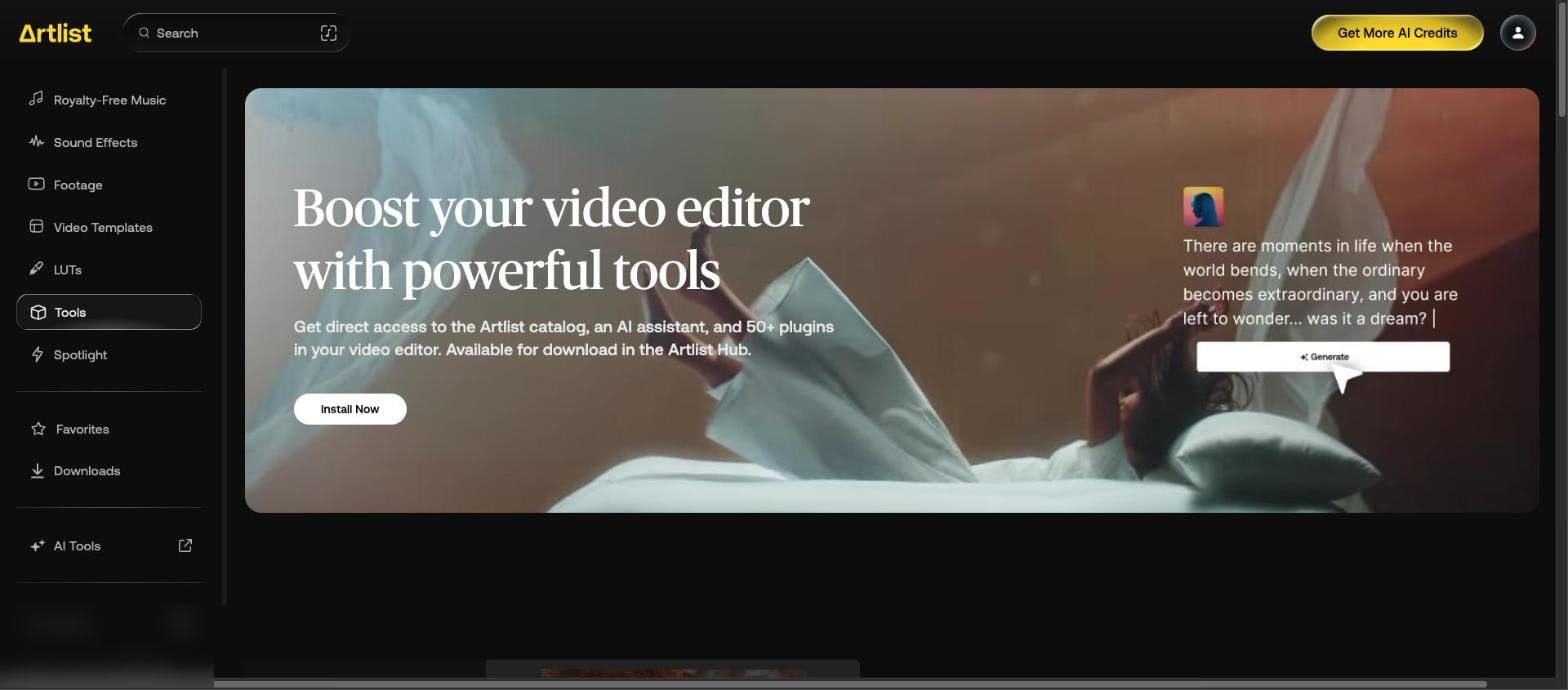
| Tool | Works in | What it does |
|---|---|---|
| Library extension | Premiere Pro | Search the catalog, preview in sync, drag to the timeline |
| AI Assistant | Premiere Pro | Silence Removal and Auto Zoom |
| Plugins, 50+ | Premiere Pro, After Effects, Final Cut Pro, DaVinci Resolve | Effects such as grain, glow, distortion and keying |
The Library extension is the one that changes how you work, since you can audition a track against your actual cut. It has the same daily limits as the website.
The AI Assistant does less but saves real time: Silence Removal cuts pauses from dialogue, and Auto Zoom adds zooms on key moments. The plugin set runs from Film Grain and Light Flares to Luminance Key and Remove Stock Background, and they appear in each editor's own effects panel under names like "Artlist - Zoom Blur". The license allows them on up to two devices. Plugins come as one bundle on Max or Business plans and show a watermark without one. The Apple store version of DaVinci Resolve isn't compatible. See Artlist Hub and extensions for installation.
AI: making what the catalog doesn't have
Open the AI tools and the left menu changes to Image, Video, Voiceover, AI Music and 3D, with Flows, Studio, Image Editor, Plugins and MCP below. Everything you make lands in projects and folders.
The sensible order follows how a shot gets made. A still costs far less than a clip, so you settle on the image first, then animate it, then add voice and music.
Before you generate anything, ask whether you need to. Each route has a clear win:
| Your video needs | Catalog | AI |
|---|---|---|
| A real location, or real people | Filmed footage, with camera data | Cheap for ideas, depends on the model for finals |
| One exact object or character | Unlikely to exist | Generate it, with references |
| Music you can reshape in the edit | Stems and versions | One mixed file |
| A custom-length song about your subject | Rarely | Lyria writes it from a sentence |
| Sound effects | Yes | Not in the AI music tool |
| Narration | Not in the catalog | Voiceover, for a few credits |
A few upload rules apply across image and video, and knowing them saves failed attempts:
| Input | Rule from Artlist's FAQ |
|---|---|
| Reference images | Under 10 MB, at least 0.5 MP, ratio between 0.4:1 and 2.5:1 |
| Transparency | Not supported for image or video references |
| Reference videos on Seedance | MP4 or MOV, under 50 MB in total |
| Prompt length | 2,500 characters on Kling, 5,000 on Seedance, 2,000 for images from text |
You can also write a negative prompt on supported models to name what shouldn't appear, such as "text, blurry, extra hands". Sizes are limited to the preset aspect ratios for each model, so an unusual size means cropping after download.
Get the frame right as a still
The image generator is the cheapest place to learn how Artlist's AI works. You type a prompt, choose a model, and hold the pointer over Generate to see the price before committing. Hold that habit, because the model list only shows "From" prices.
We gave four models the same sentence, a red teapot on a kitchen table with a chalkboard reading OPEN DAILY.

| Model | Settings | Credits |
|---|---|---|
| Nano Banana 2 | 16:9, 1K | 90 |
| GPT Image 2.5 | 16:9, Medium, 1K | 80 |
| Seedream 5.0 Flash | 16:9, 2K | 50 |
| Flux 3 Klein | 16:9, 2K | 30 |
All four spelled the sign correctly. The price gap matters when you're exploring, so use a cheap model for ideas and pay more for the final.
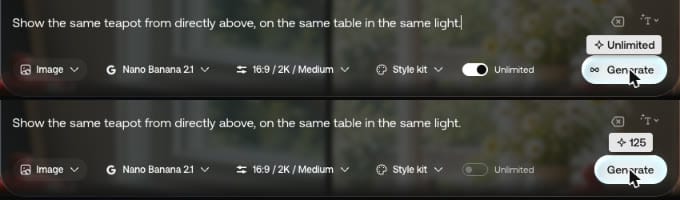
Watch the Unlimited toggle as you go. On our account it was on when we opened the tool, and it came back on when we changed quality or switched to a model that supports it. With it on, Generate shows "Unlimited". With it off, it shows the credit price.
Once you have a result, Add to Prompt turns it into a reference called @img1 for the next generation. We asked Seedream to "Change the teapot to matte blue. Keep everything else identical." for 50 credits, and the sign, mug and table stayed in place. Presets offers ready-made setups if you'd rather not write prompts.
A finished image also has a Use menu with Recreate, Upscale, Edit Image, Remove Background at 30 credits, Generate Music, Create Avatar, Save as Reference and Use with AI Agent. So a good image is a starting point for most of the other tools. Our page on the Artlist AI image generator shows all the test images.
Fix the details in the editor
Regenerating a whole image to change one object wastes credits and tends to change other things too. The Artlist image editor works more like Photoshop, with layers.
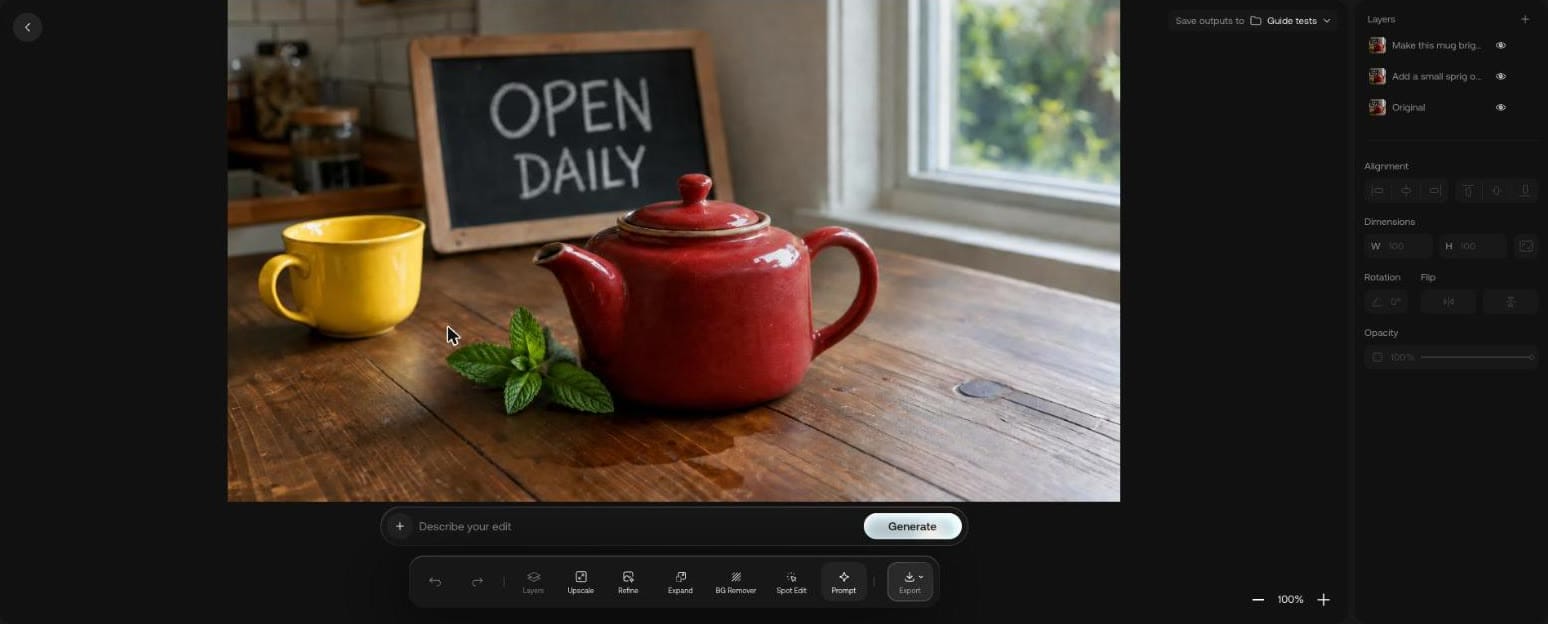
Spot Edit lets you click on the thing you want changed and type a note on a pin. Prompt changes the picture overall, BG Remover cuts out the background and Expand grows the frame to a new ratio.
Prices shown on hover for our 1280 x 720 upload were 90 credits for Prompt and Spot Edit, 30 for BG Remover, 170 for Refine and 270 for a 2x upscale. Three edits on our picture cost 210 credits: a mint sprig added by prompt, a mug turned yellow with Spot Edit, and a background removed for 30. Each edit arrives as a new layer, and Export can send the result out as a flattened image or straight to the video tool as a start frame.
Animate it
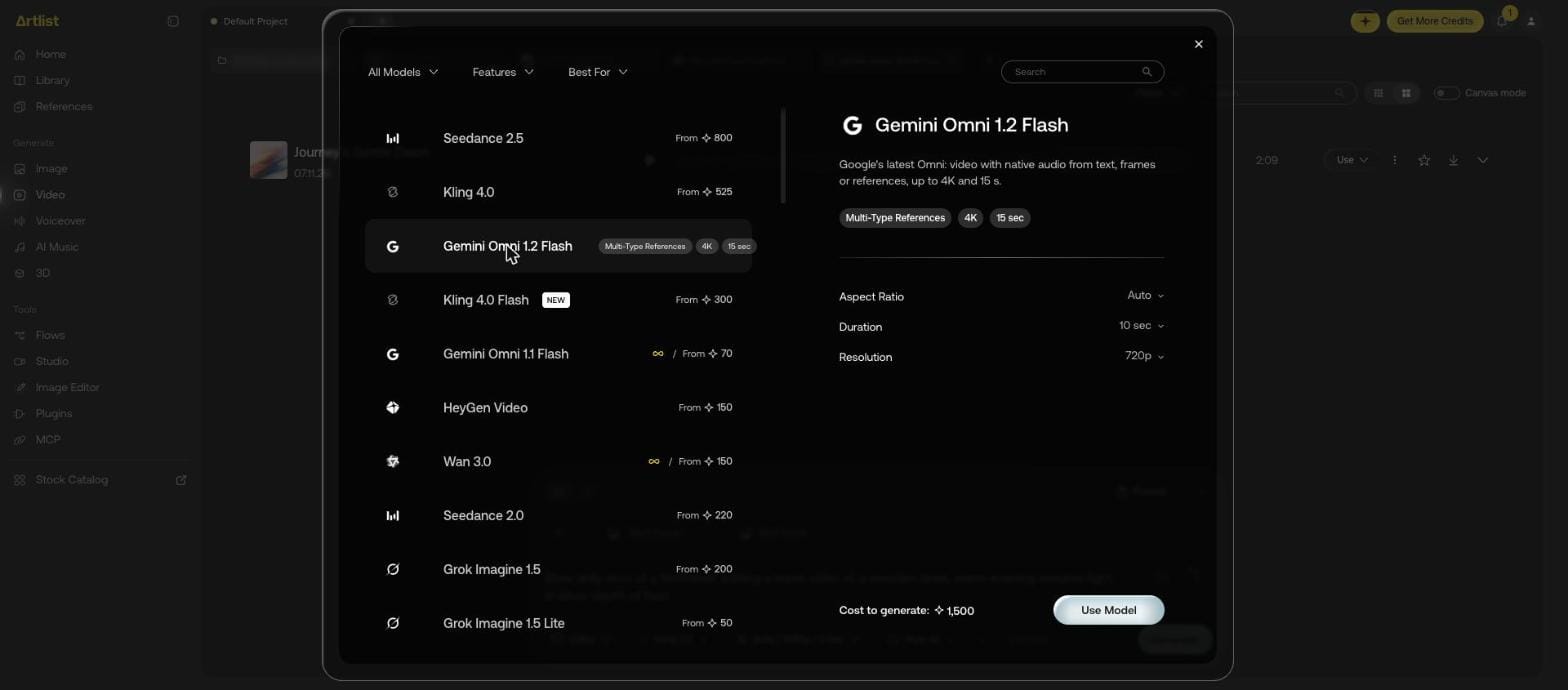
Video is where credits go, and where the list price misleads most. A 5-second clip cost us between 175 and 1,000 credits, and the same prompt looks different on each model.
That's MiniMax H3 Max Turbo at 175 credits, with this prompt:
A paper boat drifts across a still pond at sunrise, slow push-in, soft ripples spreading from the bow
| Model | List says | We paid | Settings |
|---|---|---|---|
| MiniMax H3 Max Turbo | 175 | 480p, 5 sec | |
| Grok Imagine 1.5 Lite | From 50 | 250 | 480p, 5 sec |
| Gemini Omni 1.2 Flash | From 70 | 350 | 360p, 5 sec |
| Seedance 2.5 | From 800 | 1,000 | 480p, 5 sec |
Here's the same boat on Seedance 2.5:
The stills from earlier come in now. Open a finished image and press Video, and it lands in the prompt as @start, so the clip begins on a frame you've already approved. That's cheaper than re-rolling whole clips to get the composition right.
Two details are worth a look before a big render. Seedance 2.5 has a Draft Mode: choose 480p for "a fast, low-cost" take, then render it in 1080p once it looks right. And clip lengths depend on the model, running 4 to 15 seconds, or up to 30 on Seedance 2.5, so a longer scene means several clips joined in your editor.
Some models accept much more than a sentence. Seedance 2.5 takes up to 30 images, 10 video clips and 10 audio files, up to 50 inputs in total. Tag them in your prompt, like "@Image1 as character, @Video1 for motion", and the more exact you are, the closer the result. Kling 3.0 Motion Control applies a reference video's movement to your character, while Kling O3 Video Edit changes an existing video by prompt, such as removing a person or restyling a scene. Veo 3.1 Extend adds 7 seconds to a clip of 2 to 30 seconds. Video references on Seedance 2.5 always cost credits, even on Unlimited. The Artlist AI video generator page has our clips and the full steps.
A finished clip has its own Use menu too: Upscale, Change Ratio, Extract Frame, Create Lip-Sync, Translate Video and Use with AI Agent. Extract Frame is handy for continuity, since the last frame of one clip can start the next.
Choosing a model is its own job, since the list keeps changing. Seedance, Kling, Veo, Gemini Omni, Wan, LTX, MiniMax, Grok and Flux all appear, while Artlist's FAQ says Sora 2 and Sora 2 Pro left the picker in September 2026. Our Artlist AI models list covers every family, with credit rates and which run on Unlimited.
Give it a voice
Voiceover is the cheap part. Three models read the same 8-second line for 11 to 22 credits, with the same voice:
| Model | Rate on screen | Credits |
|---|---|---|
| MiniMax 02 HD | 1 credit = 10 characters | 11 |
| Eleven v4 | 1 credit = 8 characters | 14 |
| Eleven v3 | 1 credit = 5 characters | 22 |
Listen to the MiniMax take:
The Voice Catalog has Artlist Original Voices, External Voices and Custom Voices, filtered by model, language, category, gender and age. A generation holds up to 5,000 characters, and Stability controls how expressive the read is. On Eleven v3 you can direct the performance by writing a tag in brackets, like "[Calm] Good morning!".
Languages depend on the model, and the app points you to a model that supports yours. Accent selection is a Cartesia setting. On the others you get an accent by choosing a voice that has it, and Artlist names several British and Australian ones. The Effect list adds treatments from Vintage Radio to Walkie-Talkie.
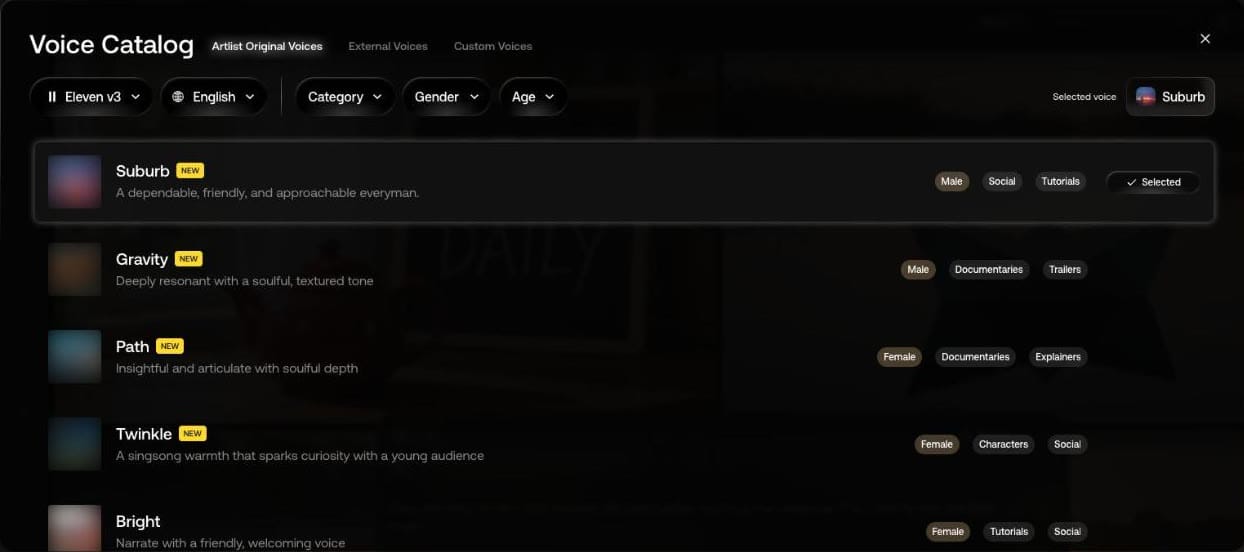
Custom Voices clones a voice you're authorized to use, from a recording of 10 seconds to 5 minutes. It's on our Artlist AI voiceover page along with the other two takes.
Custom voices generate in all supported languages except Swedish, according to the FAQ, and on a team everyone can use them.
Score it
A catalog track comes with stems and versions and is made by people. An AI song is one mixed file, made to your description.
Lyria 3 Pro makes up to 3 minutes from 300 credits, while Lyria 3 makes 30 seconds from 150. Both take vocals, and you can set Auto Lyrics, Custom Lyrics or Instrumental. Our prompt asked for a warm cinematic instrumental for a travel montage, with felt piano and soft strings:
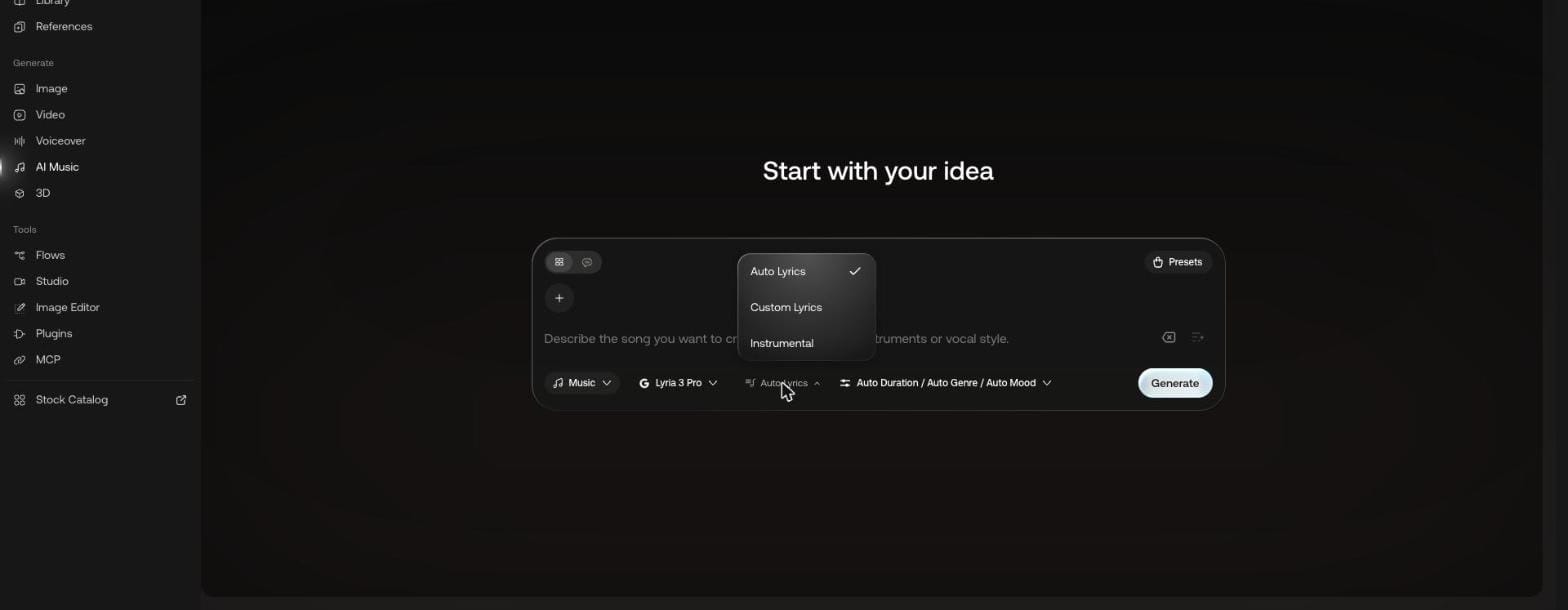
The limits, from Artlist's FAQ: no stems, no uploading a song as a reference, no sound effects, and named artists or songs in a prompt may be blocked. If you need any of those, go back to the catalog. Our Artlist AI music generator page has three test tracks to play.
A toggle called Artlist Sound adds what Artlist calls "professional production for a polished, high-end sound", and it left our price at 300. Genre, mood, theme, tempo and an image input are all available too. Stock music can't leave a video project. Artlist's License, Terms of Use and Acceptable Use Policy don't place that rule on output you generate.
Build an object
Type a sentence or attach an image, and you get a textured .glb. Our rowing boat from text cost 300 credits on Hyper3D Rodin v2.5 Fast. The teapot from our earlier image cost 900 on Tripo H3.1, and the model came back as the teapot alone, without the sign and flowers from the picture.

Four models were on the list when we looked, starting from 300 to 3,600 credits. Our Artlist 3D model generator page has both GLB files to download.
The price moves with the input: Tripo H3.1 showed 600 credits with no image and 900 at Generate once ours was attached. So check the button rather than the panel.
Keep it looking like one project
By now the problem is consistency. Separate generations drift, and the same character may come back with a different face. Artlist has two features for this.
A style kit holds written guidelines, a color palette and reference images, and it attaches to a generation. We added one sentence and three colors, then ran the teapot prompt again on the same 30-credit model.

Attaching the kit left the price at 30 credits, and the picture became a flat paper-cut illustration in our mustard, teal and cream, with the teapot still red as the prompt asked.
References do the same job for one recurring subject. You save a character, location or prop with up to 30 images, then call it up in later prompts. Characters can also get a Character sheet built from 1 to 5 images. Use a kit for how the project looks and a reference for who or what's in it.
Kits work in Studio as well as the image tool, and through MCP. The steps are on our page about Artlist references and style kits.
Finish the shot
The last group of AI tools works on what you've already made, and most sit in a clip's Use menu rather than in the left menu.
| Job | Tool | Our run |
|---|---|---|
| Sharpen a low-resolution draft | Topaz Upscale, in four modes | Iris x2 on 5 seconds, 750 credits |
| Make a character talk | Avatar models | A cartoon fox and 8 seconds of voice, 643 credits |
| Match lips to new audio | Lipsync v3 | Listing read, from 200 credits |
| Change language | ElevenLabs Dubbing, HeyGen Translate | Listing read, from 1,500 and 400 credits |
Our fox started as a 30-credit image and borrowed a take from the voiceover test:
Upscaling also shows why you shouldn't render everything at high resolution from the start. Our clip went from 832 x 480 to 1664 x 960, at 750 credits against 175 for the original, so it's a cost you only want to pay on the takes you keep.

For the tooltips and every model's starting price, see Artlist upscaling, lip sync and avatars.
One route from start to finish
Here's how those steps connect on a real job. Say a café wants a 30-second social ad, with a teapot on a table and one line of copy. These are our prices.
- Reference. Save the product as a Prop reference with a few photos, and make a style kit with the café's colors.
- Stills. Try the shot on Flux 3 Klein at 30 credits. Once it works, redo the final on a model you've chosen, at 90 credits or so.
- Fixes. Use Spot Edit at 90 credits for the one thing that's wrong, rather than regenerating.
- Animate. Press Video on the still and test at 480p. You need six 5-second clips, and a few spare takes at 175 each will tell you more than one expensive try.
- Voice. Write the line and run it on MiniMax 02 HD for under 20 credits.
- Music. Search the catalog first. Song Match on the café's reference track gives you 20 options, and a WAV costs nothing on a plan that includes music. If nothing fits, generate on Lyria 3 Pro for 300.
- Finish. Upscale only the chosen takes, at about 750 credits per 5 seconds on Topaz Iris. Add sound effects from the catalog, since the AI music tool doesn't make them.
- Publish. Check the café's channel is on your Clearlist if you used catalog music, then hand over the project with your song certificate.
The costly stage is the fourth. Ten takes at 175 plus the stills and voice come to about 2,000 credits before any upscaling. Run those same takes on Seedance 2.5 at 1,000 each and you're past 10,000.
Mistakes that cost credits
- Leaving Unlimited off by accident, or on by accident. It can flip with a setting. Look before you press Generate.
- Trusting "From". Read the price on the button.
- Regenerating to fix one detail. Edit instead.
- Rendering at high resolution while testing. Use 480p and Draft Mode.
- Assuming your files are stored forever. Artlist's terms say the AI tools aren't a backup service, so download what you'll need.
- Using up Unlimited's fast generations on tests. They're monthly, though standard speed continues afterwards.
Who owns what you made?
The Terms of Use say Artlist doesn't claim your output, assigns you whatever rights it has, and doesn't restrict your commercial use, without promising the result is original or non-infringing. Its FAQ says generated images and videos "can be used in any commercial context", and that still holds after you cancel, though an expired account can't download them. So get your files out first.
On training, Artlist says it contractually prohibits most third-party model providers from training on your data. Some models may, and the Help Center says those carry an information icon next to their name, so you can avoid them.
Tools: when one generation at a time stops being enough
Everything so far works one prompt at a time. Four more tools change how you work rather than what you make.
| Tool | Suits | Where it runs | Cost |
|---|---|---|---|
| Flows | Repeating a chain of steps | Web canvas | Credits per node |
| Studio | One story, many shots | Web project | Your Artlist credits |
| Premiere plugin | Editors who stay in Premiere Pro | Inside Premiere Pro | Your Artlist credits |
| MCP | People who work in an AI assistant | Claude, ChatGPT, VS Code | Credits only, no Unlimited |
Flows, if you repeat the same chain
If you often go from prompt to image to video, carrying results between tools gets old. Flows puts the chain on a canvas: boxes for Prompt, Image Generator, Video Generator and File Uploader, joined by lines that only connect compatible types.
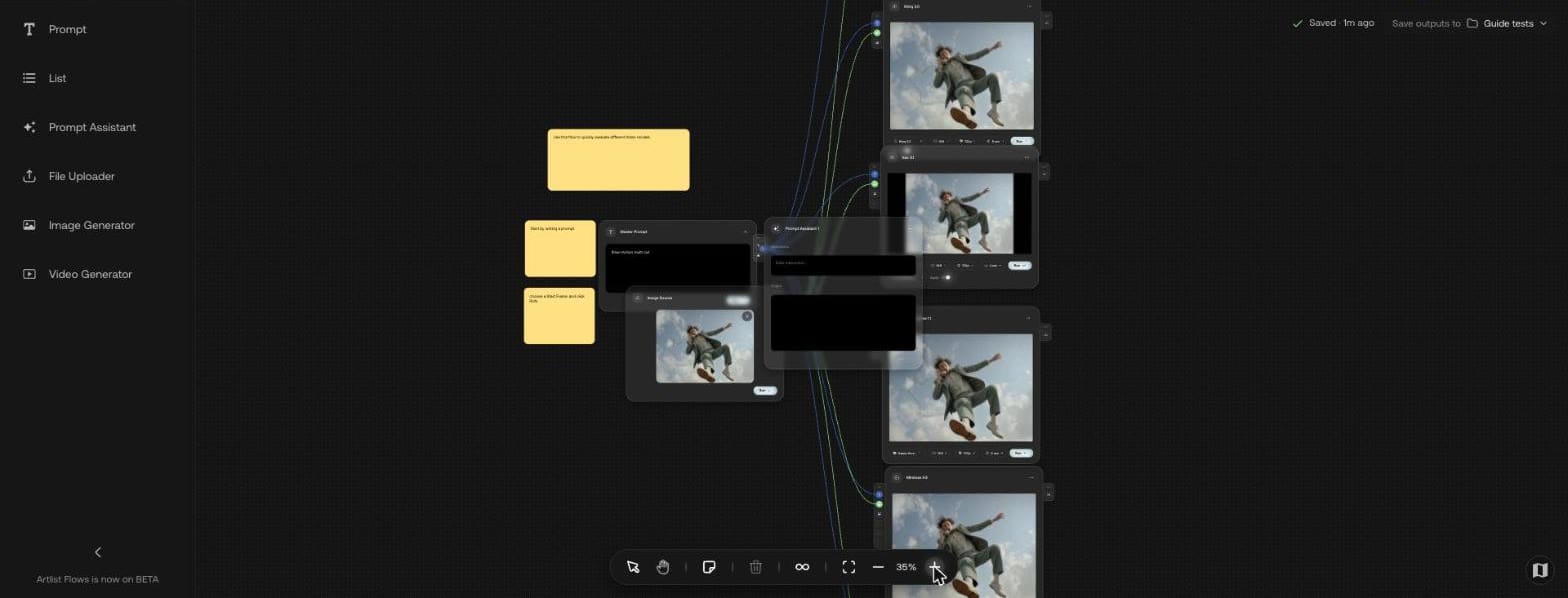
You can run one node, run from a node forward, or run the whole flow. When you run a node again, Artlist keeps the older results in a gallery on that node, and you click one to choose which version feeds the next step. Flows also shows the cost per run on each generator node, and a failed node has its own Retry button.
Start from a template instead of a blank canvas. Multi-Model Video opened as our own copy and sends one prompt into a stack of video models, each with its own Run button, which beats retyping to compare them. Remember that each node you run bills separately. Artlist marks Flows as beta in the app, and our Artlist Flows page covers the node types and templates.
Studio, if you're making a film
Studio treats AI video as a production: a row of shots, a set of recurring characters and an editor with a timeline. Each shot has two steps. Framing describes the first frame, with your characters and locations. Directing describes action and dialogue and adds the settings.
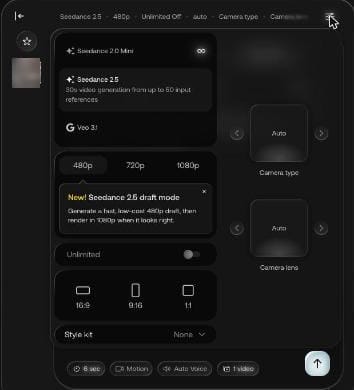
Shot settings include model, resolution, aspect ratio, style kit, camera type and lens. Artlist's plan article gives an idea of what the credits buy: up to 14 cinematic shots on 16,500 credits, and 33 on 40,000. The free account comes with 2,000 Studio credits, so this is one tool you can open before paying. Our Artlist Studio walkthrough goes through Artlist's own example project.
The choice between the two is simple. Flows suits pipelines you'll run again, and Studio suits one film with a story.
The Premiere Pro plugin, if you never leave your timeline
This one is separate from the Hub. The Artlist AI Toolkit plugin puts generation, reframe, avatars, upscale and background editing in a Premiere Pro panel, on your Artlist credits. Its results sync with your library on the web.

It needs Premiere Pro 2026 (v26.0) or later and runs on Windows and macOS. Download the installer, run it and open the panel under Window > UXP Plugins. Artlist's Plugins page says a free account is enough to start. Read more on our Artlist Premiere Pro plugin page.
MCP, if you already work in an AI assistant
Artlist MCP connects your account to Claude, ChatGPT or VS Code. You describe what you want in chat, and the assistant generates it from your credits or searches the music and sound effect catalogs.
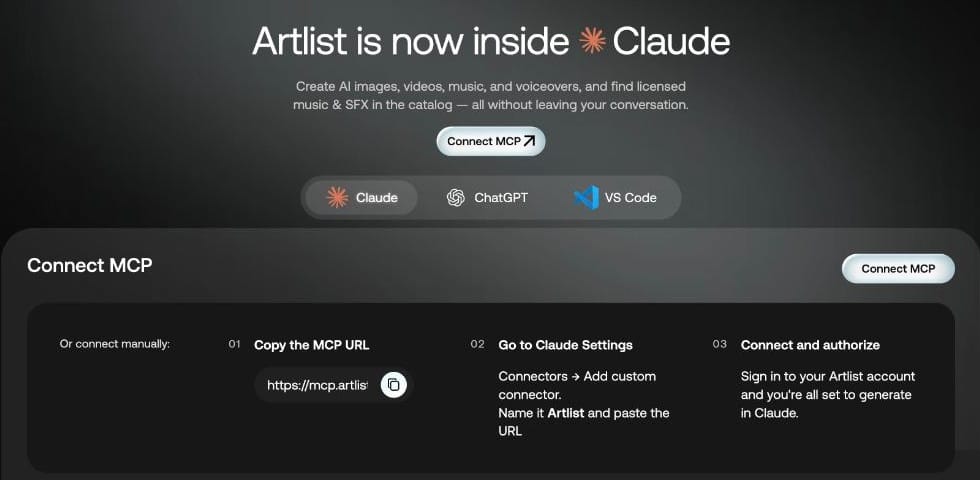
It's most useful for batches and for asking for a price before you run something.
You can say "How many credits would that cost?" before an expensive request, or "Search Artlist for calm piano tracks" to find catalog music without opening the site. Saved references and style kits work in chat as well. Footage and image catalogs can't be searched this way, only music and sound effects. Two limits stand out. Unlimited doesn't apply, so every generation costs credits, and a running generation can't be stopped. Five stills on Nano Banana Pro and five 8-second Seedance 2.5 clips at 720p came to 20,800 credits in our quotes, more than AI Starter holds, so ask for the price first. The setup for each client is on our page on how to use Artlist MCP.
Decisions: is it worth paying for?
Which plan fits what you just read?
| You are | Plan | Why |
|---|---|---|
| A YouTuber using music on your own channels | Music & SFX Social, $9.99 | One channel per platform is enough |
| A freelance editor on music-led client jobs | Music & SFX Pro, $24.92 | Pro license, stems, sound effects |
| An editor who also needs shots and grading | Max at 7,500 or 16,500 credits, $39.99 or $50.66 | Footage, templates, LUTs and plugins |
| A creator trying AI for a few videos a month | AI Starter, $11.99 | About six of our sample videos a month |
| A creator generating most days | AI Core or AI Creator, $23.99 or $41.67 | Unlimited on 9 or 19 models |
| Someone who wants the lot and generates often | Max at 40,000 or 80,000, $62.99 or $76.99 | Stock plus Unlimited |
| An agency or a company over 50 people | Max Business, from $399 | Required for stock |
Prices are per month billed yearly, and exclude VAT.
Artlist or Epidemic Sound?
It comes down to what your work needs besides music. Artlist has footage, templates, LUTs and AI video and image generation. Epidemic Sound's pricing page lists none of those, and offers 55,000 tracks, 250,000 sound effects and a 30-day trial that lets first-time users publish. Both keep content published during a subscription covered forever. Both have channel-listing systems and MCP.
So if your job is mostly audio, look hard at Epidemic. Switching either way follows the same rule: leave published videos as they are, clear your channels on the new service before the first upload, and stop putting the old service's downloads in new videos. If you want one subscription to cover pictures too, Artlist is the one that does. We set out each difference in Artlist vs Epidemic Sound, and the competing offer is on our Epidemic Sound discount code page.
Is it worth it at all?
Our verdict is yes for anyone who'll use more than one part of it. The value is in the combination: footage, music, grading and generation under one bill and one login. If you only want a few tracks a year, you'd be paying for a lot you won't touch. The rating, the downsides and who it's wrong for are in our Artlist review.
If you're buying for a business, the rules differ. Max Business carries legal indemnification for assets and AI services, with exclusions and a liability limit set in the Business Terms, and it brings 7 team members and 180,000 credits. Over 7 seats, or for apps and games, you're into a custom deal. A company that only generates can stay on AI plans: seven AI Creator plans cost $291.69 a month for 560,000 credits, but without stock, the Business license or indemnification. Our page on Artlist for enterprise goes through it.
If you're a student, there's a page for that too: our look at the Artlist student discount.
Who shouldn't buy it?
Three kinds of people will probably be disappointed. If you want to publish a track with no video, the stock license won't let you. If you need a single asset for a single project, Artlist doesn't sell licenses per asset. And if you run a company over 50 employees on a Pro plan because it's cheaper, the license doesn't cover your stock use.
Common questions
What is Artlist? A subscription service for video creators, with licensed music, sound effects, footage, templates and LUTs, and AI tools for generating video, images, voice, music and 3D.
How does Artlist work? You choose a plan, download assets or generate with credits, and use them in your projects. Whatever you publish while subscribed stays covered after you leave.
Is Artlist free? The account is, with no time limit. Publishing needs a paid plan.
Is Artlist royalty free? Artlist says content licensed through an active plan can be used without ongoing royalties online. Broadcast and public performance can bring requests from performance rights organizations, which the license doesn't pay.
Can I use Artlist music on YouTube? Yes, on a paid plan with music, and put your channel on the Clearlist.
Do Artlist videos get copyright claims? They can, if the channel or video isn't on your Clearlist. A claim from Artlist Ltd clears once it's added.
What happens to my videos if I cancel? They stay up and can stay monetized, as long as you published them during your subscription.
Do credits roll over? No. They reset monthly.
Can I use AI images and video commercially? Artlist's FAQ says yes, in "any commercial context", including ads and client projects.
Does Artlist have Sora? Not on the website. Artlist's FAQ says Sora 2 and Sora 2 Pro were removed from the model picker in September 2026, but Artlist's MCP connector still listed both on November 8, 2026.
Can several people share one subscription? Individual plans cover one person, one seat at a time. Teams and Max Business cover up to 7 members, and Unlimited rules out account sharing.
What file formats do I get? MP3 or WAV for music, AAC or WAV for the effect we checked, HD to 8K for footage, .cube for LUTs, MP4 for generated video, MP3 for voiceover and GLB for 3D.
Does Artlist work with my editor? Templates and plugins cover Premiere Pro, After Effects, Final Cut Pro and DaVinci Resolve. The Library extension and the AI plugin are for Premiere Pro.
How to get the best price
Pay yearly: on the AI Suite tab that saves 40% against monthly. Choose the lowest credit tier you can justify, since upgrades are available and prorated when you outgrow it. Then use our Artlist promo code page, which gives 2 free months on annual plans.