How to Preview and Download Artlist LUTs (2026)
Last verified: 2026-11-08
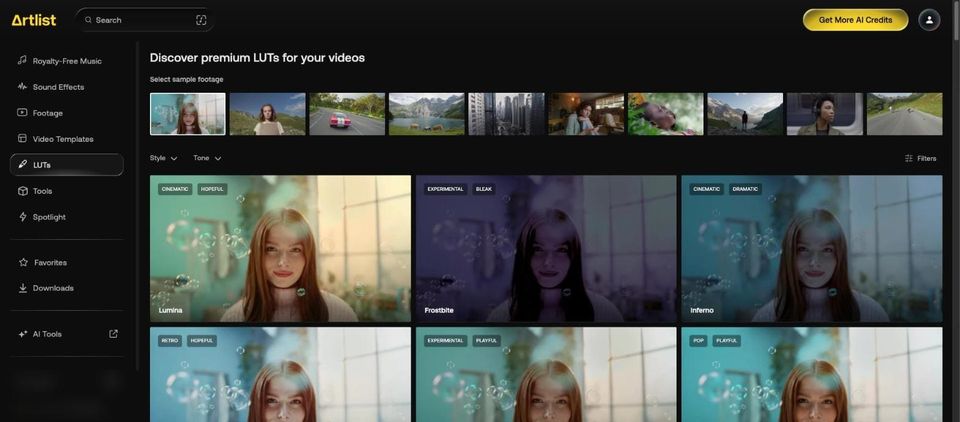
In the LUTs area of how Artlist works, pick a sample clip close to your footage, hover over a LUT to compare it with the source, then download it as a .cube file.
How do you preview a LUT?
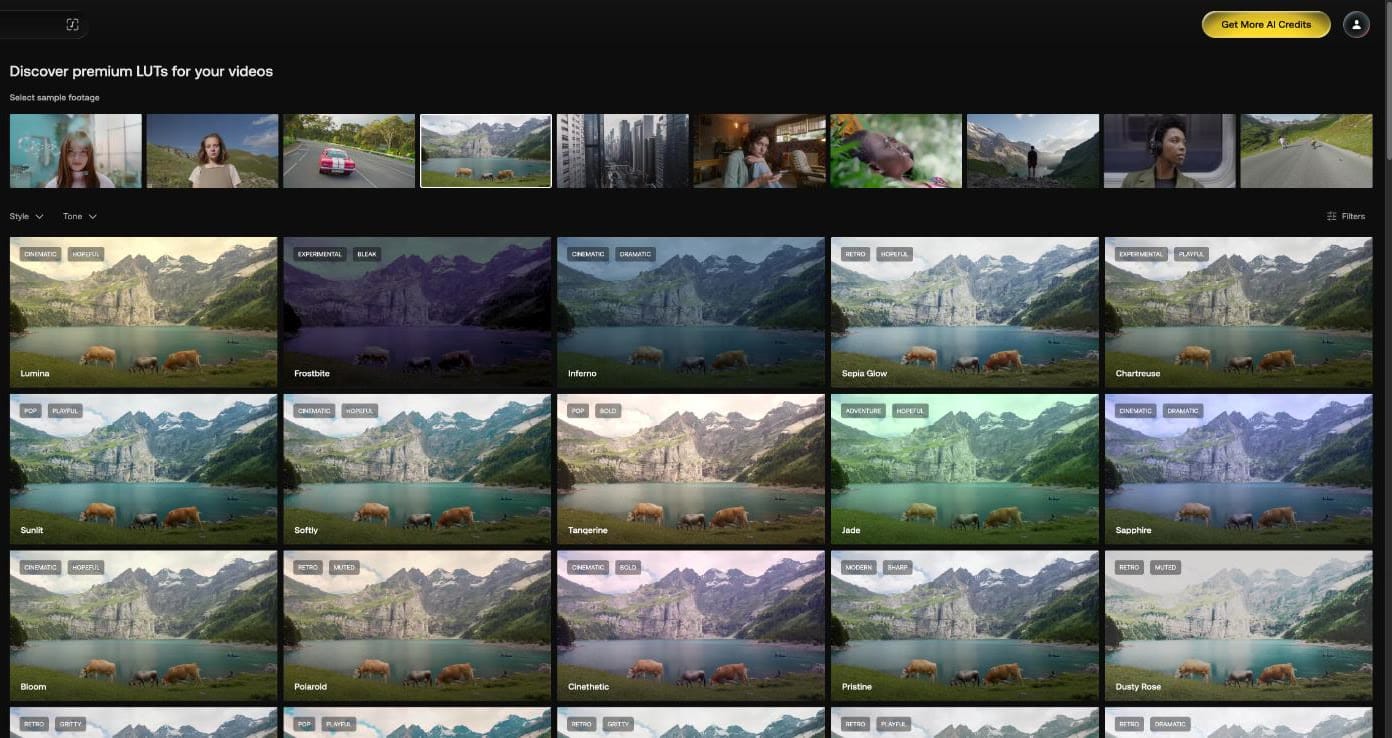
Select sample footage offers 10 clips, and every LUT in the grid switches to the clip you choose.
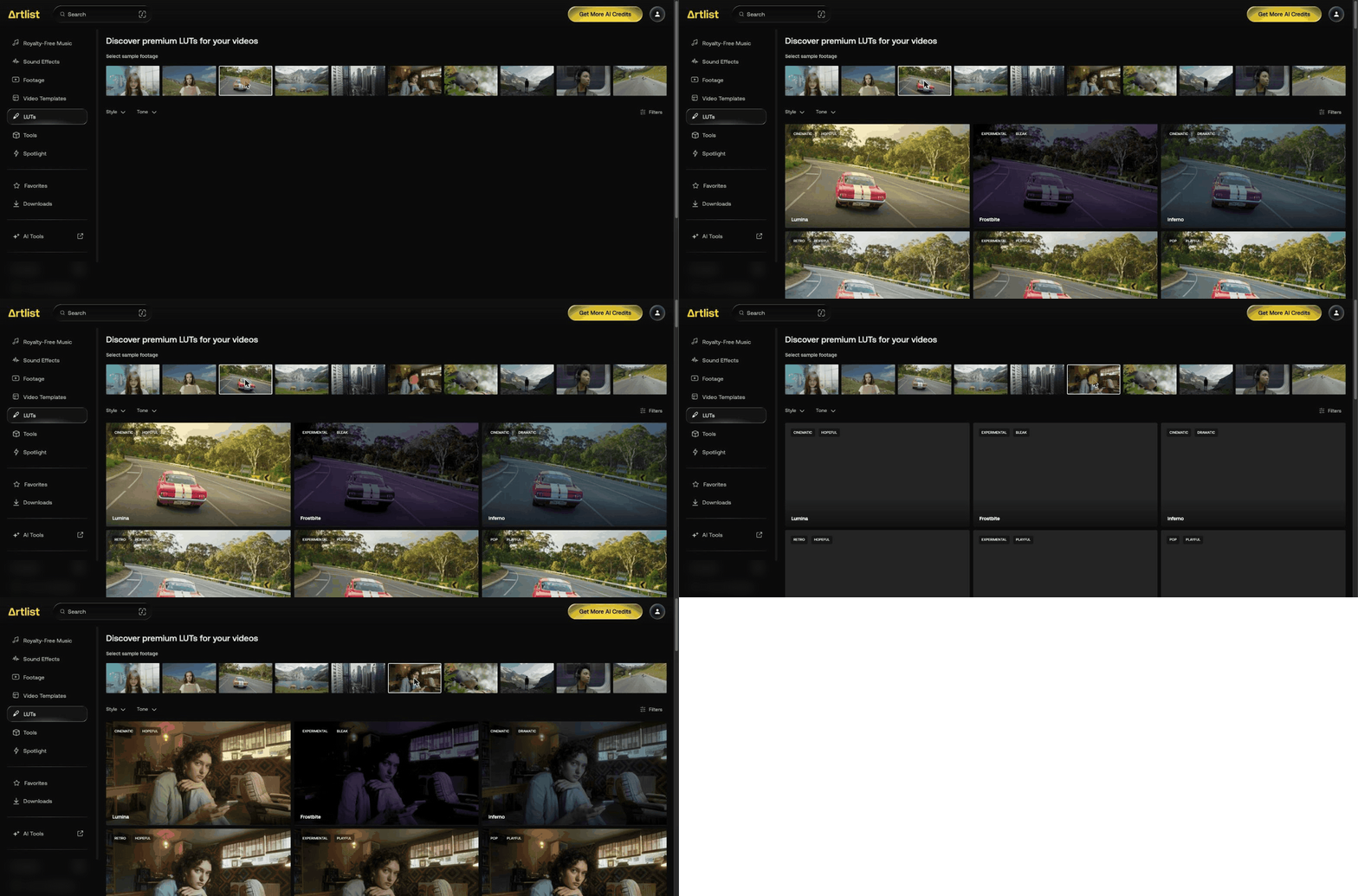


Hover over a LUT for a split view. The LUT's name is on one side and "Source" on the other. A click on the thumbnail opens a larger preview.
How do three LUTs compare on the same clip?
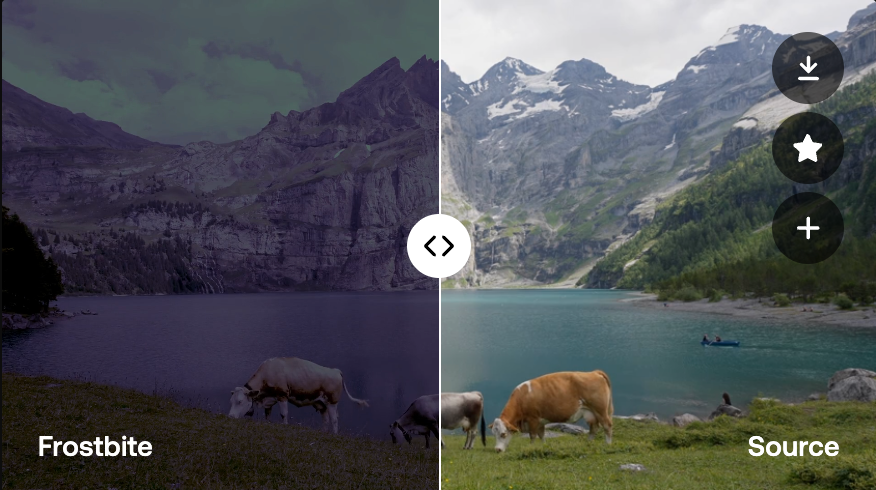
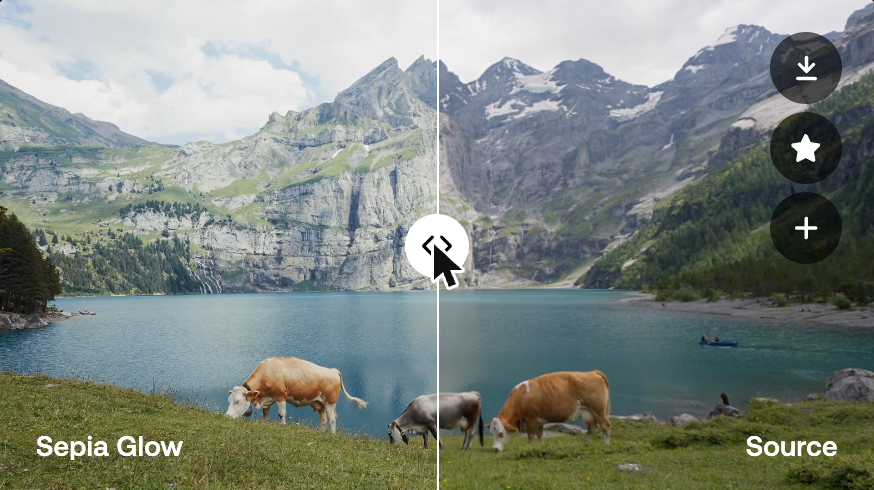
We picked the fourth sample, a mountain lake with cows grazing, and hovered over three LUTs next to each other in the grid. The left half of each split is the LUT, the right half the untouched source.
| LUT | Tags on the tile | What the split shows on this clip |
|---|---|---|
| Frostbite | Experimental, Bleak | Much darker, with a green sky and a purple cast over rock and water |
| Inferno | Cinematic, Dramatic | Darker and bluer, with a blue cast over sky and water |
| Sepia Glow | Retro, Hopeful | Lighter and softer in contrast, with yellower grass |
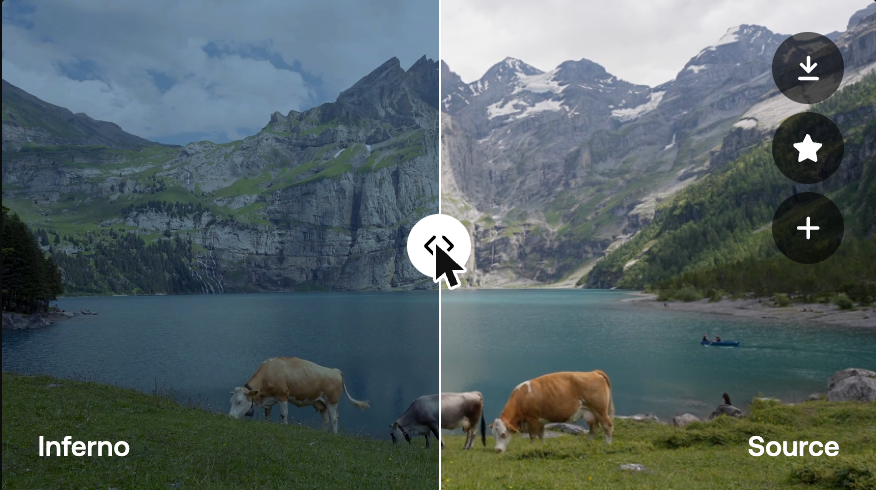
On this clip Inferno came out bluer, not warmer.
What does the larger preview show?
Click a LUT tile. A larger preview opens with all ten samples in a strip along the top, so you can switch clips without closing it, and an arrow to step to the next LUT.
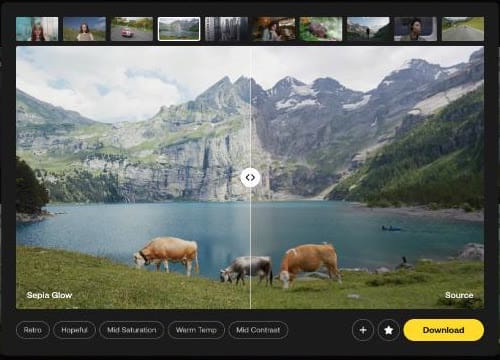
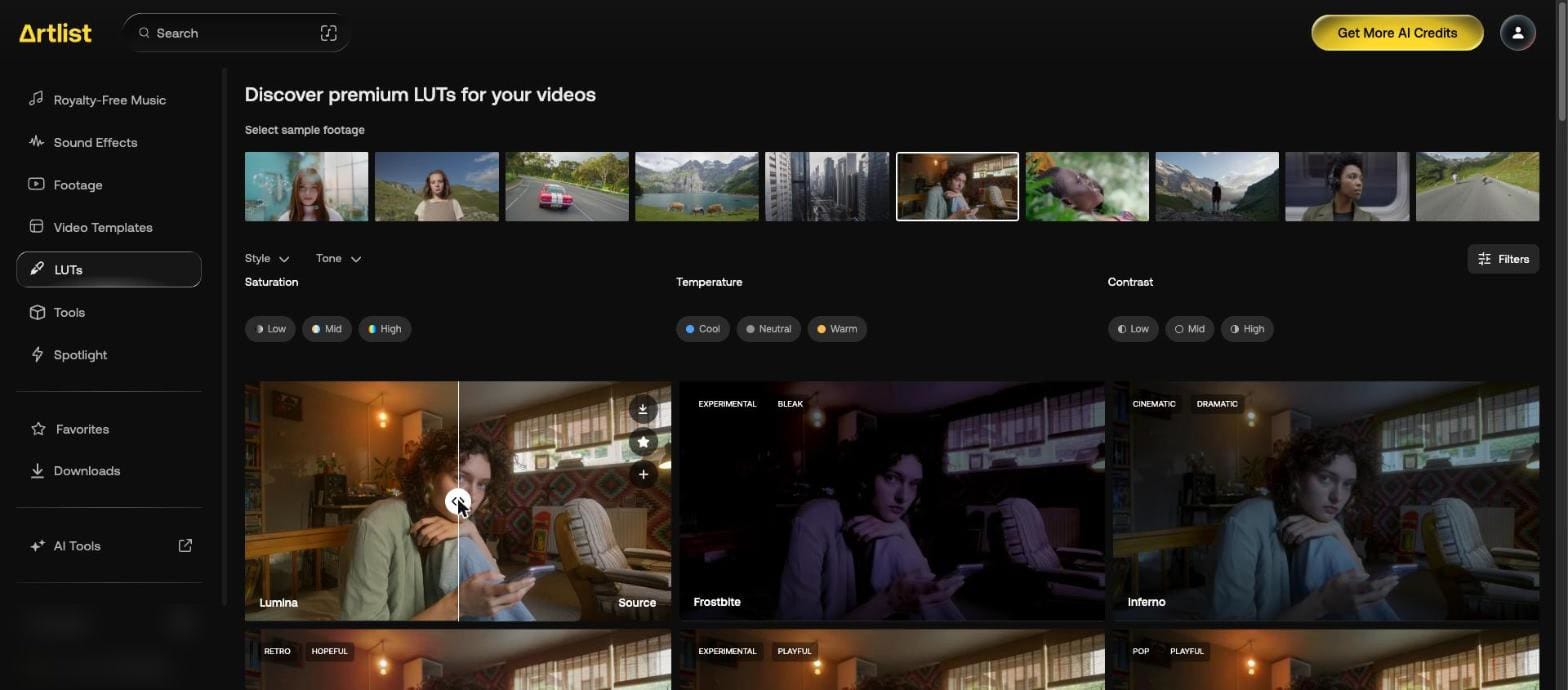
The split has a handle you can drag, here moved left to show more of the source. Below it, the LUT's tags spell out its filter values. Sepia Glow reads Retro, Hopeful, Mid Saturation, Warm Temp and Mid Contrast. The plus adds it to an artboard, the star to favorites, and Download gets the file.
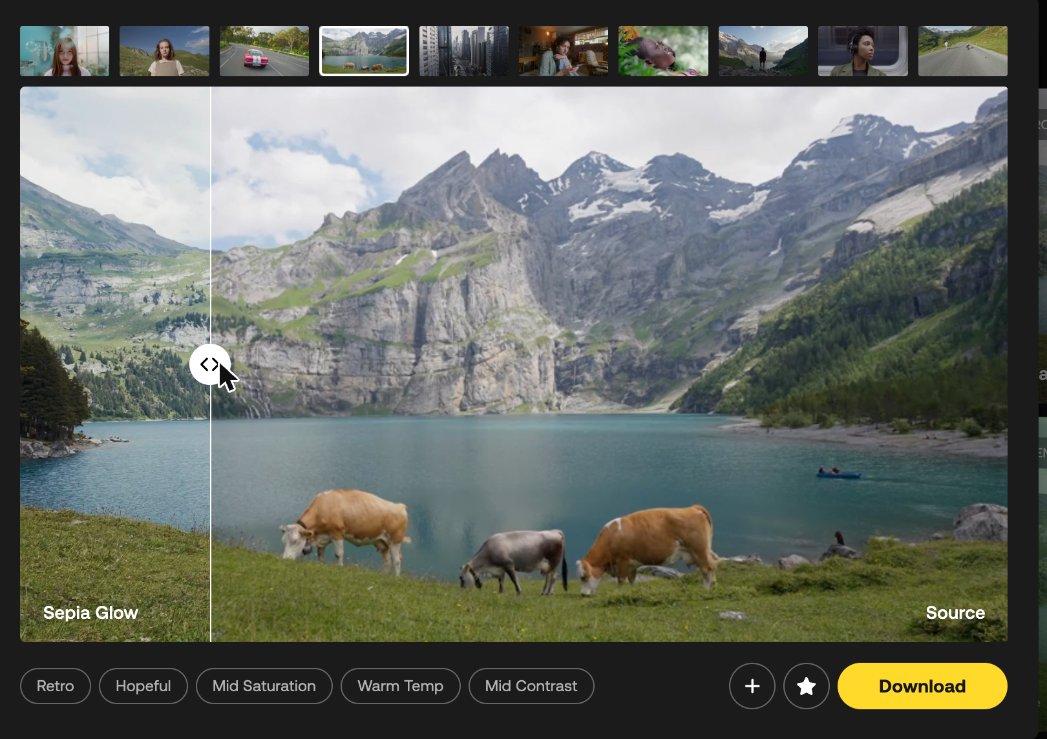
On the grid itself, hovering shows three buttons on the tile: download, star and plus.
How do you narrow LUTs by look?
| Control | Options |
|---|---|
| Style | Cinematic, Monochromatic, Pop, Retro, Modern, Experimental, Adventure, Social |
| Tone | Dramatic, Bold, Hopeful, Muted, Playful, Gritty, Sharp, Bleak |
| Saturation | Low, Mid, High |
| Temperature | Cool, Neutral, Warm |
| Contrast | Low, Mid, High |

What file do you get?
One press of the arrow on a LUT downloads it straight away, with no format menu. We downloaded Lumina.
| Detail | Value |
|---|---|
| File | Lumina.cube |
| Size | 970 KB |
| Type | 3D LUT, 33-point |
All Artlist LUTs are built in Rec. 709. You can download up to 40 a day.
How do you apply an Artlist LUT?
The Help Center starts every editor the same way: add an Adjustment or Color Correction layer, so the original footage stays untouched. Then:
| Editor | Where the LUT goes |
|---|---|
| Premiere Pro | Lumetri Color panel, under Basic Correction or Creative |
| DaVinci Resolve | Right-click a node in the Color workspace, then 3D LUT |
| Final Cut Pro | Drag Custom LUT from the Effects browser and choose your LUT |
For clips to grade, see Artlist stock footage. The drone clip we opened there offered LOG.
LUTs come with any Max, Max Teams, Footage & Templates or Business plan, all billed annually, and aren't sold one by one. Prices are on our Artlist plans page.
Our Artlist coupon code page gives 2 free months on annual plans. If your soundtrack comes from elsewhere, see the Epidemic Sound coupon code.